7. First Checks
Your EHA machine is in place and you are ready to turn it on! Here are some first checks to go through.
- Plug in your machine. The plug should be at the rear of the machine. It is a good idea to plug your machine into a power strip with a surge protector.
- Plug in your HDMI cable from the TV/Monitor to your EHA machine. The HDMI port should be on the back of your machine.
- Press the power button to turn on your machine. For uprights the power button is on top of the machine. For tabletops it is on the back center. For pedestals it is on the back near the center, opposite the HDMI port.
Upright Machines
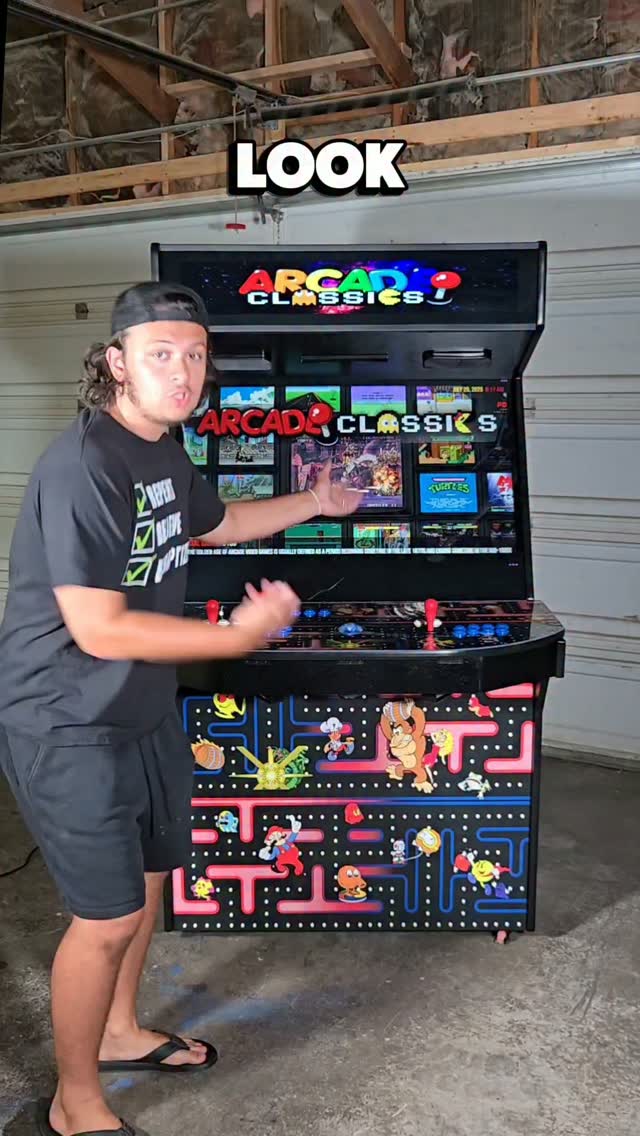
Upright machines typically come configured and ready to go. Follow the Quick Start Guide. You should be playing games in a few minutes. If you have problems, open the back panel and make sure all cables are FULLY plugged in — it is common for cables to come loose in shipping.
Pedestal and GameBox Machines
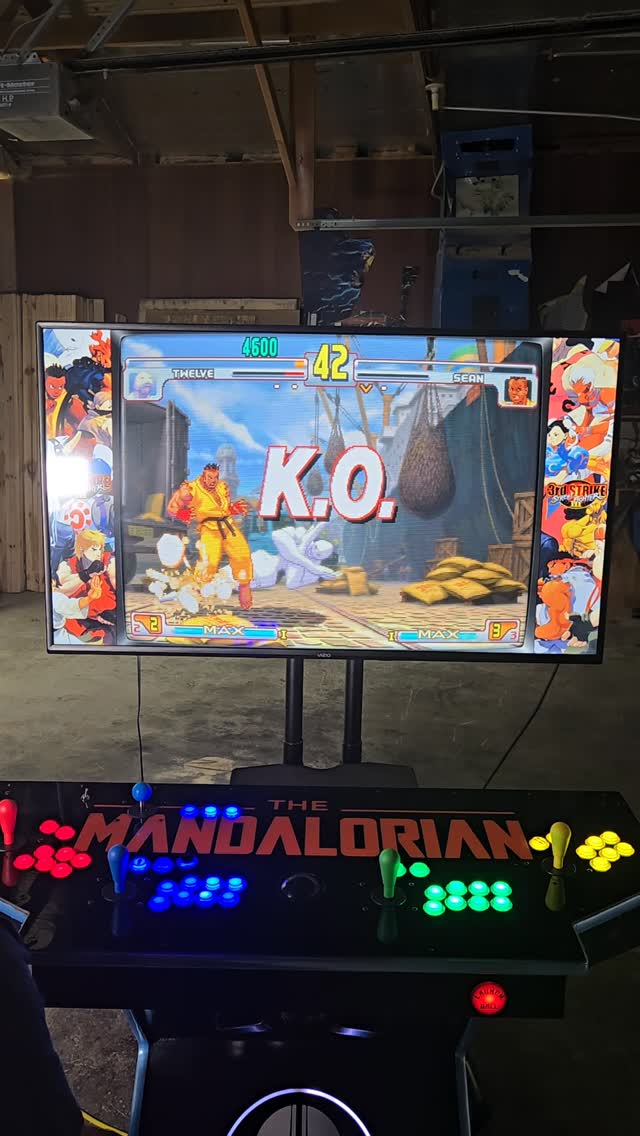
For Pedestal and GameBox machines you are providing your own monitor, so it is important to configure the correct display settings:
- Turn on your EHA machine and let the startup video play for 30 seconds, then skip it. You will be at the Big Box main menu.
- Exit Big Box to get to the Windows Desktop (HOLD P1's START Button and press P2's START Button until you reach the Big Box Unified screen, then select Exit).
- Use the trackball as a mouse (flip the AUX Switch to the RIGHT to enable mouse buttons).
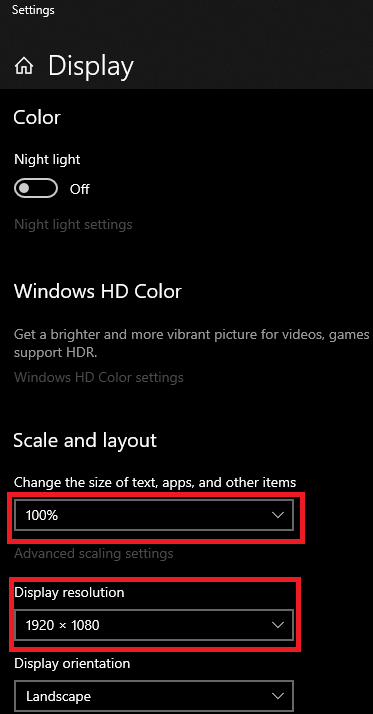
- Right-click on the desktop and select Display settings.
- Set Display resolution to 1920 x 1080 and scale to 100%. Click X to close.
- Right-click the Windows Desktop and select NVIDIA Control Panel.
- Under Display, click "Change resolution." Set the Refresh rate to 60Hz for both your primary display and active marquee (if you have one).
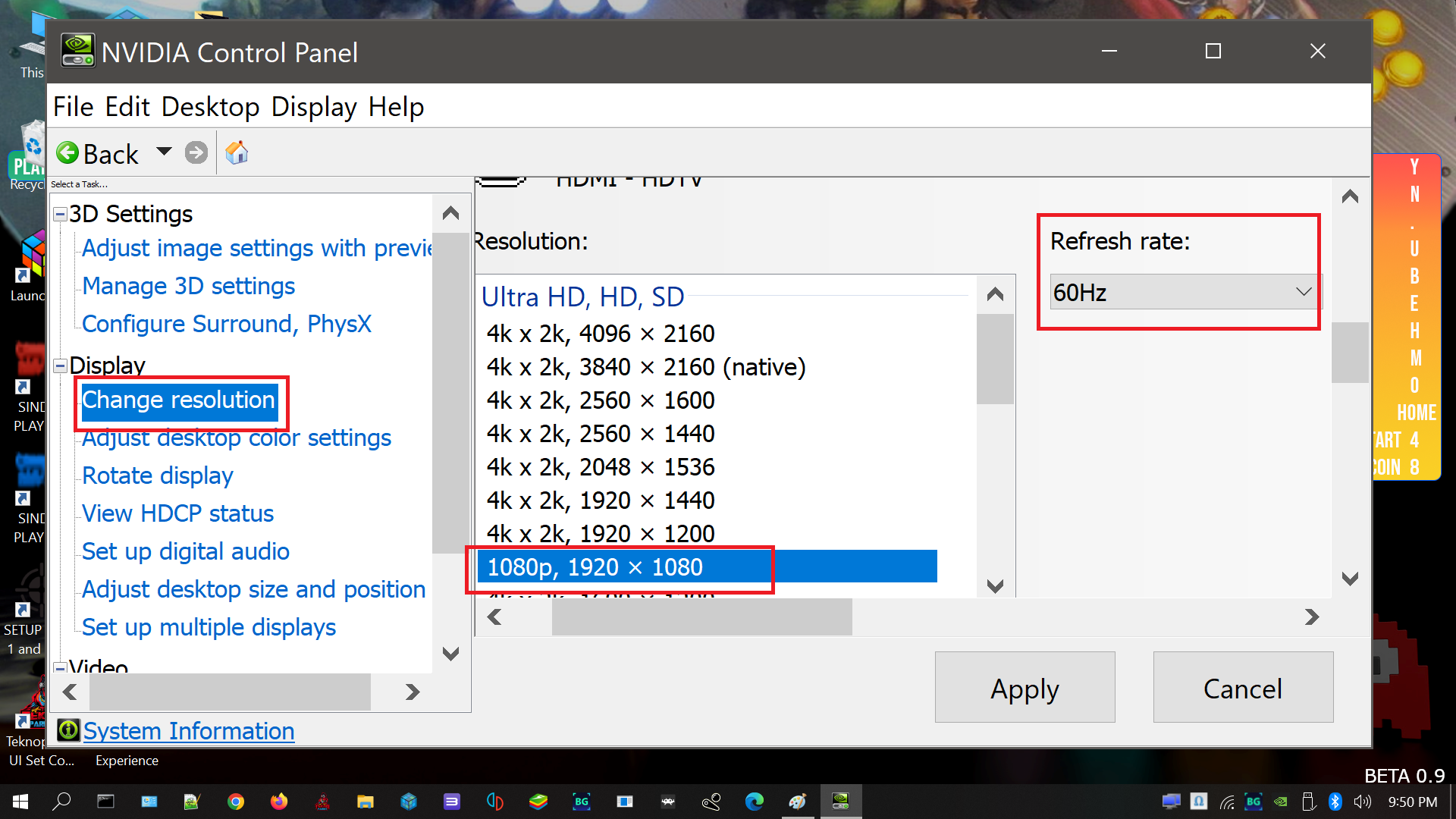
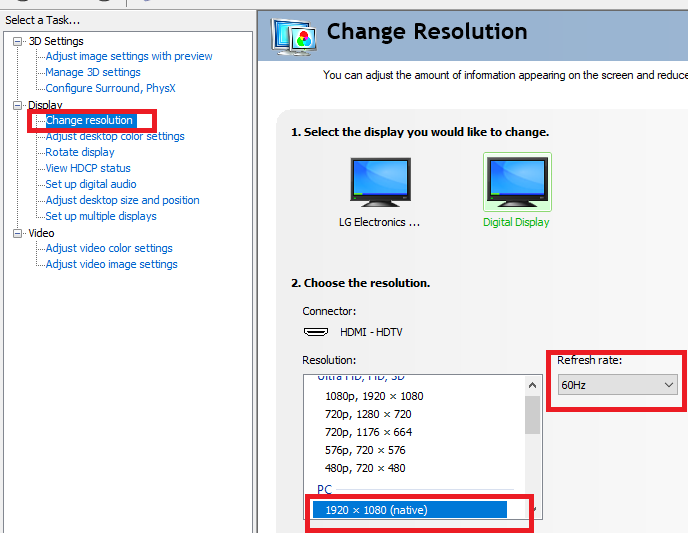
- Click Apply to apply the settings.
- Close the NVIDIA Control Panel.
- Reboot your machine via the Windows Start menu > Power > Restart.
- When the machine reboots, follow the Quick Start Guide to start playing games!