B. Mapping Overview (MAME)
A variety of peripherals (light gun, steering wheel/pedals, X-Box controller, flight stick, trackball, spinner, dance pad, etc.) are compatible with your machine. Because there are so many available, often you must "map" or tell your machine what peripheral you are using and how you want it set up. This section is generally aimed at MAME (Multiple Arcade Machine Emulator) games found in the ARCADE CLASSICS wheel in Big Box.
Accessing the Player Menu in MAME
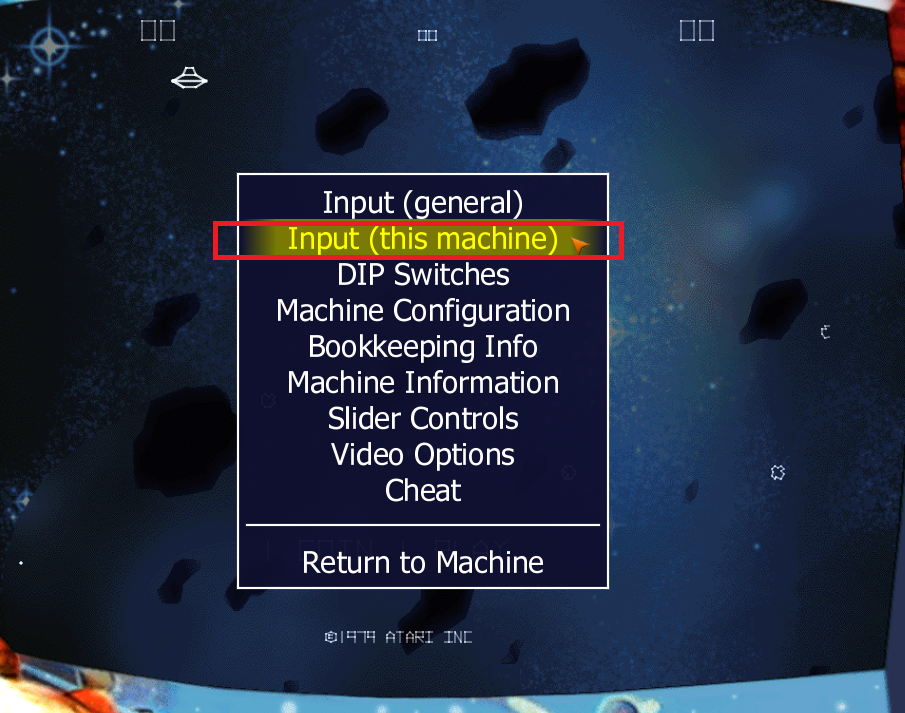
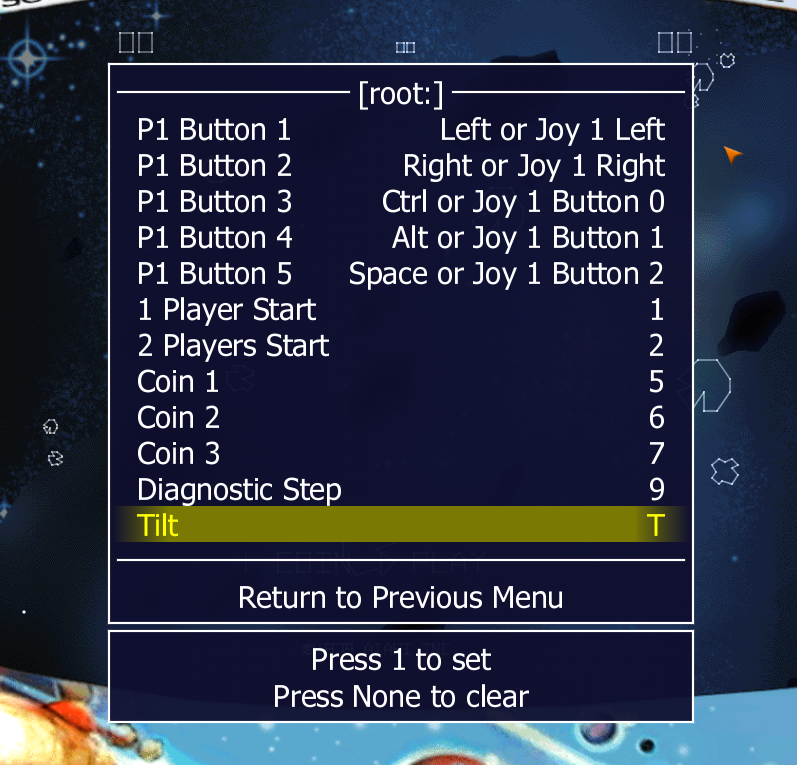
Load a MAME game (like Asteroids). When loaded, PUSH AND HOLD P1's START/[Shift] Button and then push RIGHT on P1's Joystick. This loads the Player Menu.
NEVER change "Input (general)" — this globally changes ALL games. Always select "Input (this Machine)" to only change the current game.
Adjusting Analog Sensitivity


In the Player Menu, for some games you can adjust control sensitivity under "Analog Controls." For example, you can increase or decrease the X/Y axis sensitivity for a Flight Stick.
Mapping a Trackball in Arcade Classics (MAME)

- Load a trackball game (like Centipede) from ARCADE CLASSICS.
- HOLD P1's START/[SHIFT] Button AND Press Right on P1's Joystick to open the Player Menu.
- Go to "Input (this Machine)" and press P1's START Button.
- Go to "Track X Analog" and press P1's START Button to clear it.
- Spin the trackball LEFT or RIGHT. It should say something like "Mouse 5 X."
- Go to "Track Y Analog" and press P1's START Button to clear it.
- Spin the trackball UP or DOWN. It should say something like "Mouse 5 Y."
- Navigate to "Return to Previous Menu" and press P1's START Button.
- Navigate to "Return to Machine" and press P1's START Button.
- To adjust sensitivity: go back to the Player Menu > Input (this Machine) > Analog Controls > Track X Sensitivity, then press joystick left/right to adjust.
MAME Mapping Tips
- TIP 1 — Keyboard shortcuts: [TAB] opens/closes the Player Menu. [CURSOR keys] navigate the menu. [ESC] goes back one menu or sets "None" for a selection.
- TIP 2 — Setting None: To enter "None" for a mapping selection, press [ESC] on a keyboard while in the selection.
- TIP 3 — Multiple commands in one selection (Exception): You can map multiple joystick directions to one selection. Each press adds to the selection up to about 7-8 movements.
- TIP 4 — Only 1 command per selection (Rule): Typically keep just one input per selection. Use [ESC] to clear unwanted extra inputs.