Clear Cart
Product Title
Add-On
Product Metafield Value
Option 1 / Option 2 / Option 3
Product Note
Subscription Plan Info
Product Discount (-$0)
COUPON1 (-$0)
$0
$0
-
+
Your cart is Empty. There must be something you'd like to add!

LaunchBox is a gaming library front end by Unbroken Software. Omega uses LaunchBox to organize and run your games. Big Box is a special version of LaunchBox designed for larger screens. When Omega loads and the startup video finishes, you end up at the Big Box main wheel. When a user wants to organize games they use LaunchBox. When a user wants to play games, they use Big Box.
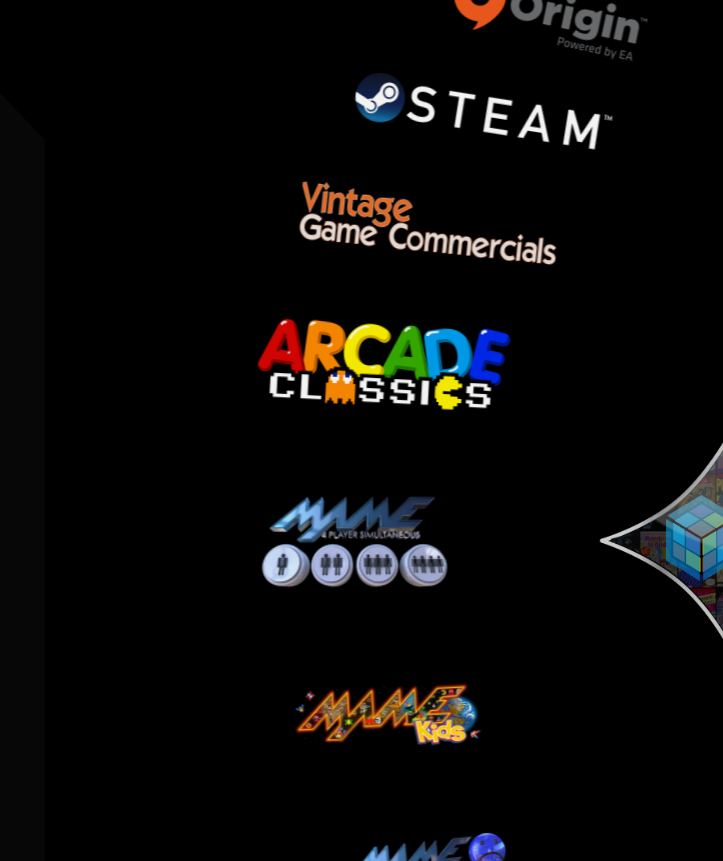
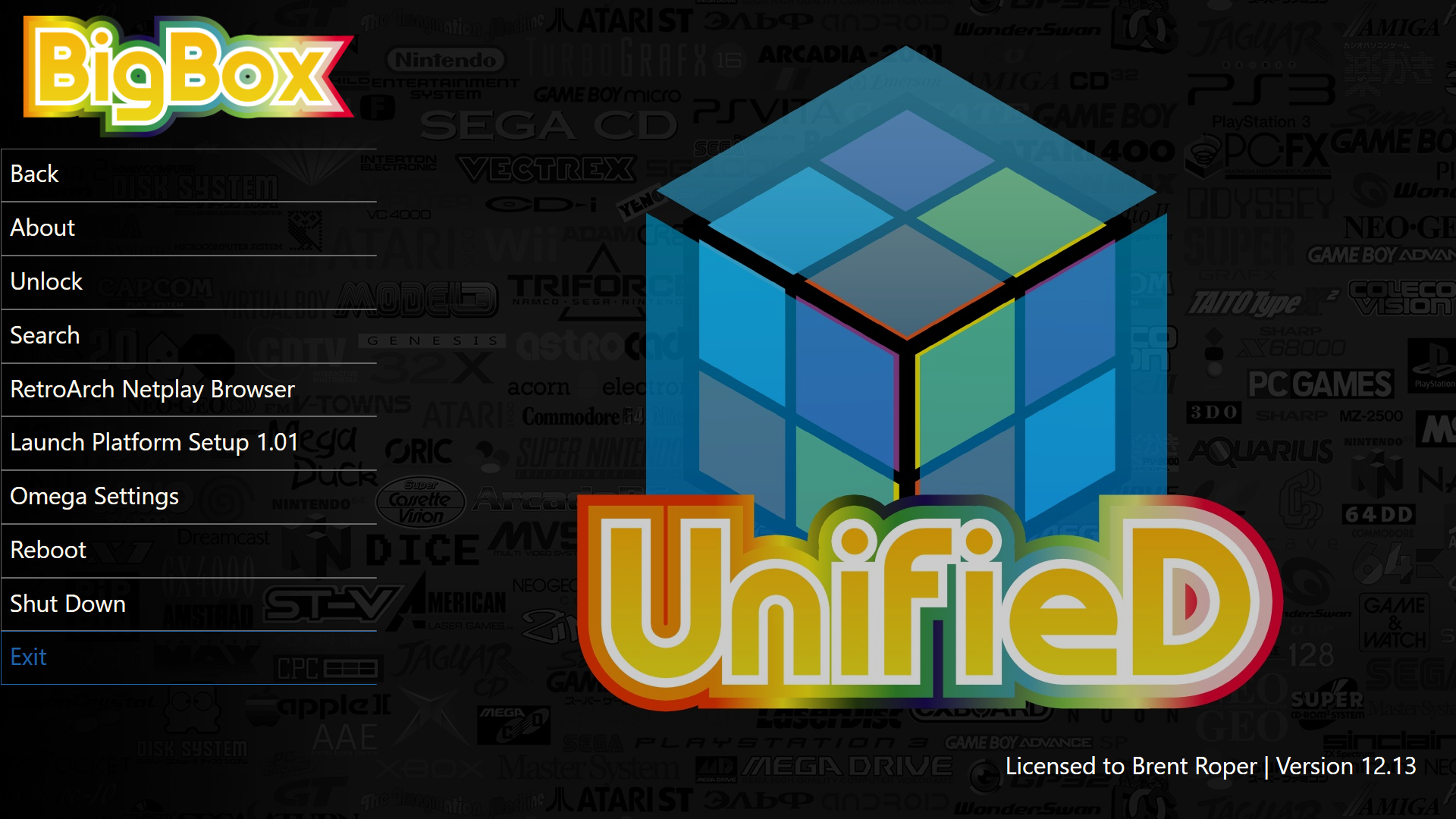

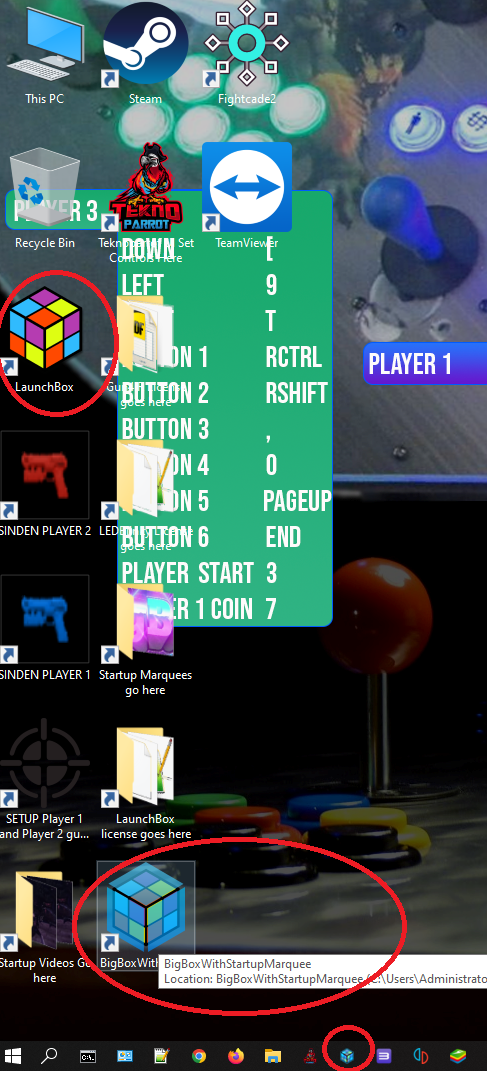
When your EHA Omega machine loads, it automatically loads Big Box and plays a startup video. Allow the startup video to play for 30 seconds so Big Box can fully load. After 30 seconds, push any button to stop the video and reach the Big Box main wheel.
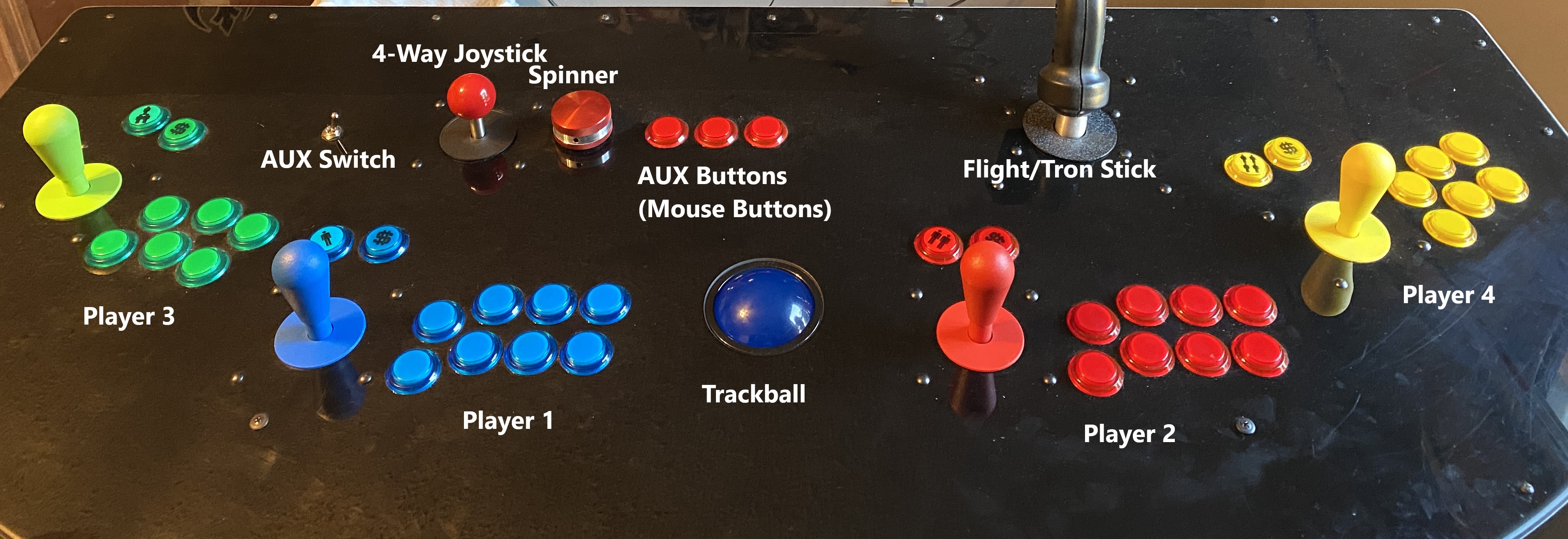

Below are the key Big Box commands. Note: P1 = Player 1, P2 = Player 2.


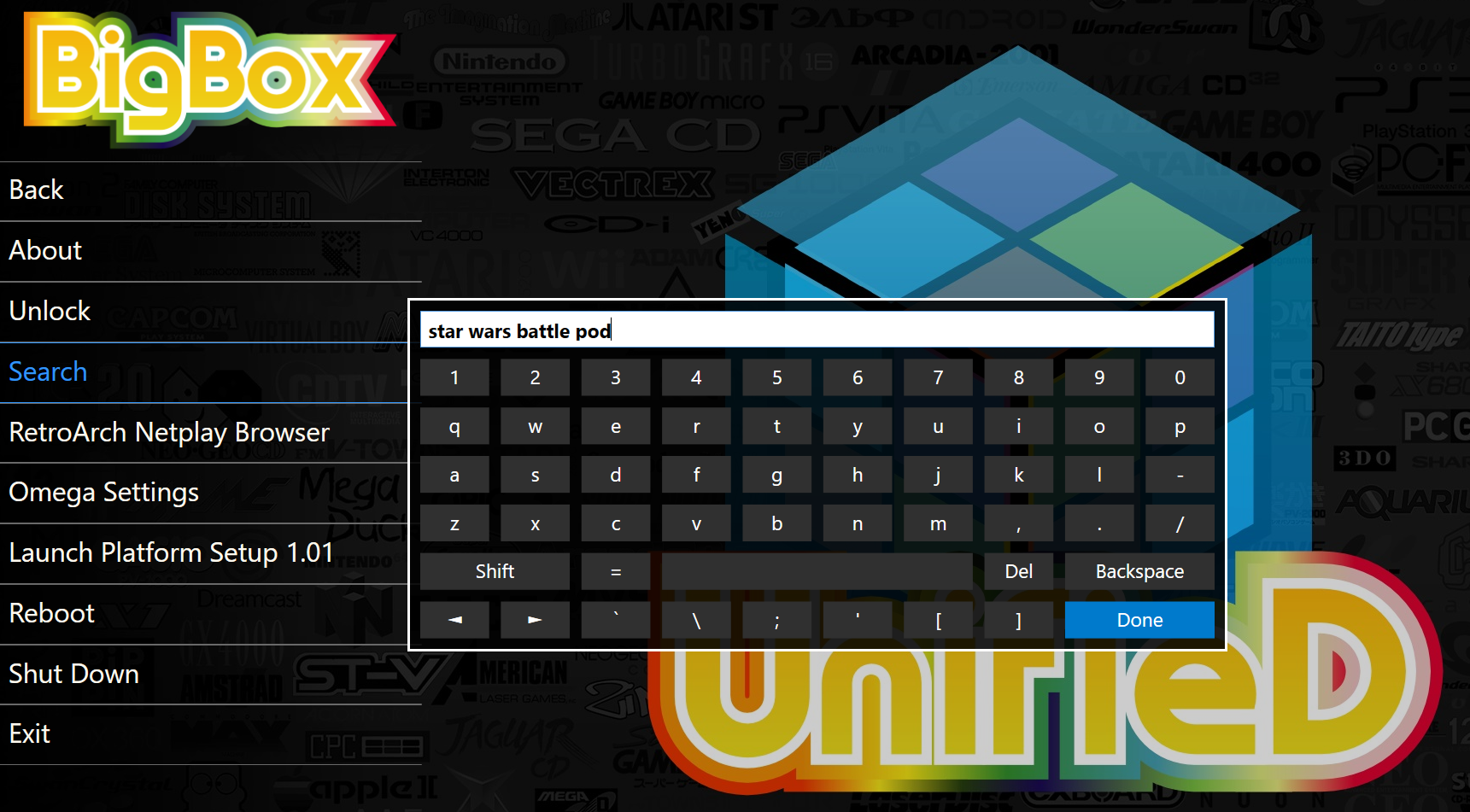
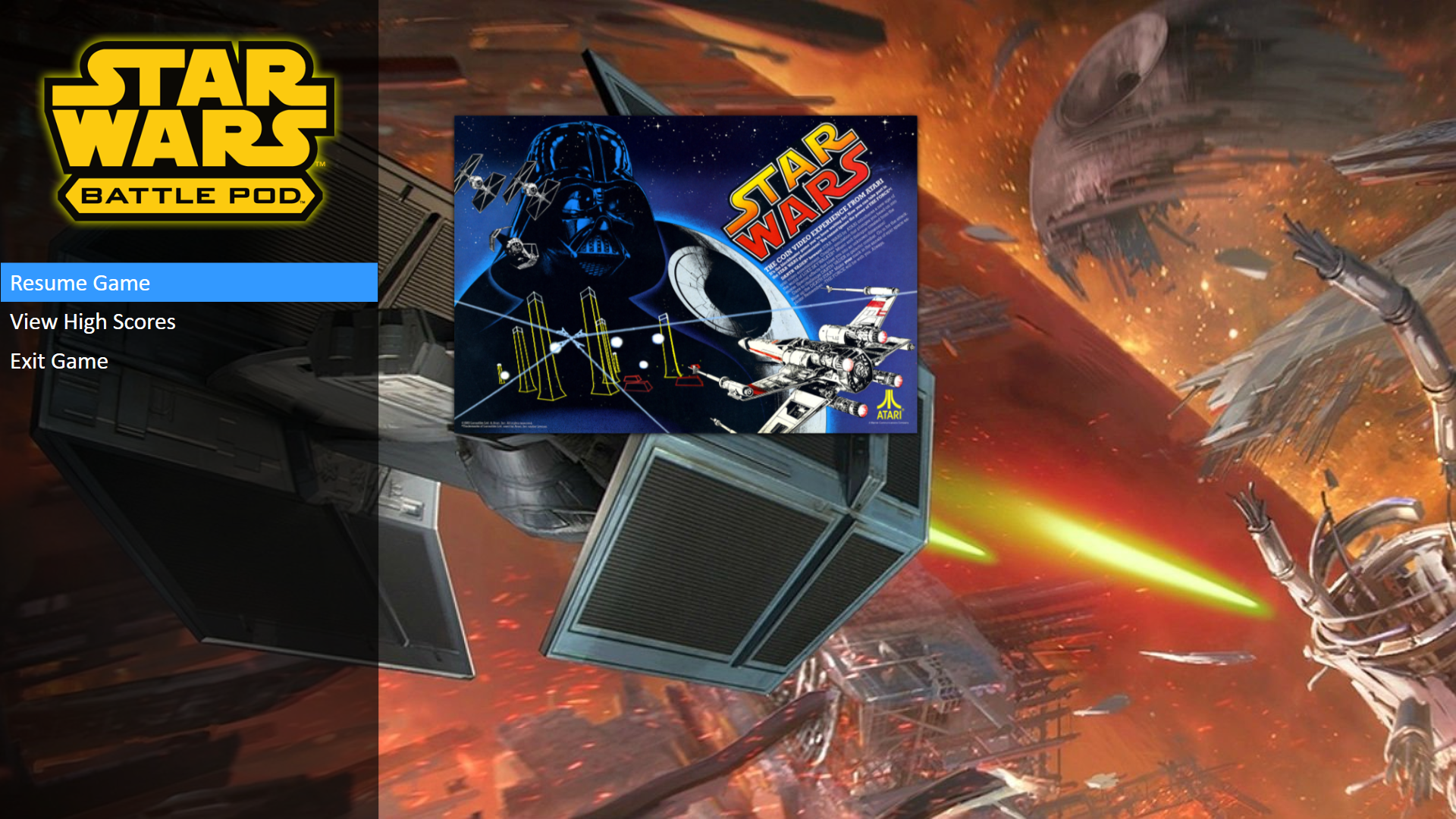

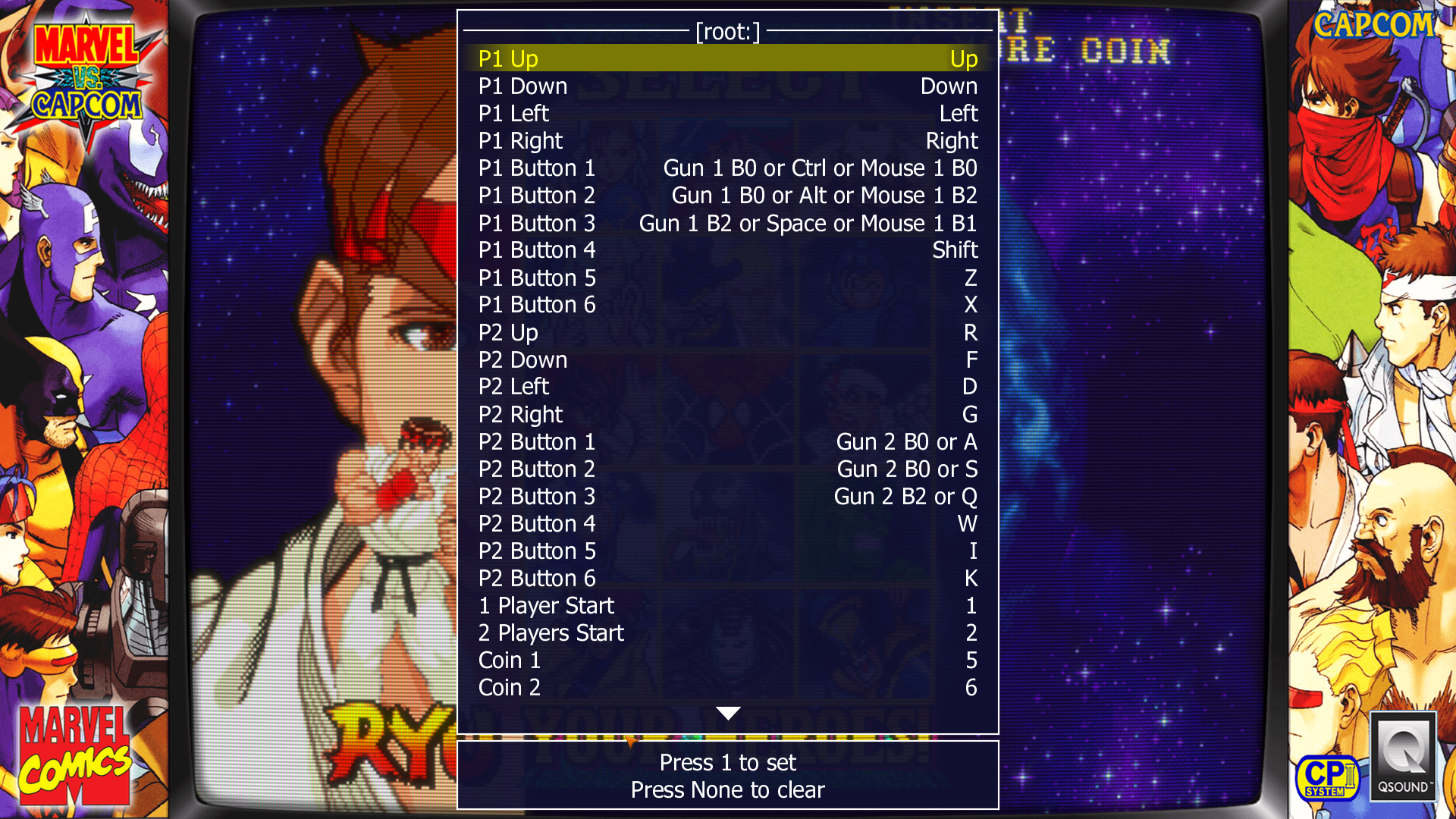
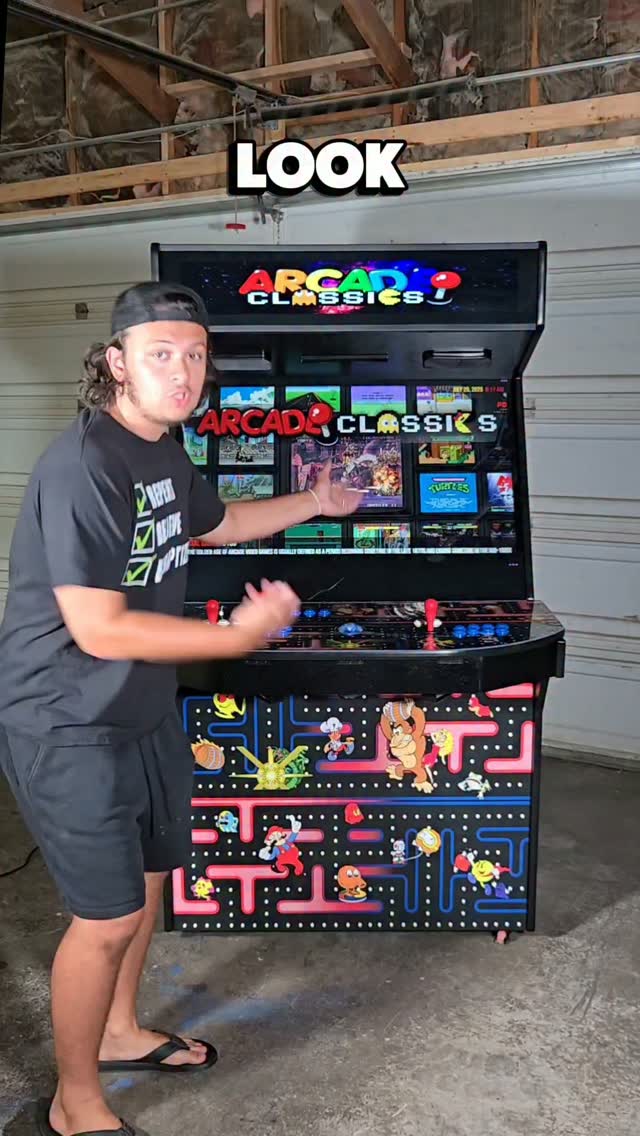
Popular subwheels include: Arcade Classics (MAME), MAME 4-Player Games, Favorites, TeknoParrot, Sinden Light Gun, IR Light Guns, Racing Games, Time Crisis, PC Games, Xbox/PlayStation, Nintendo Systems, and Adult Wheel.
Note: Load light gun games through the IR Light Gun Wheel or Sinden Light Gun Wheel for correct mapping.
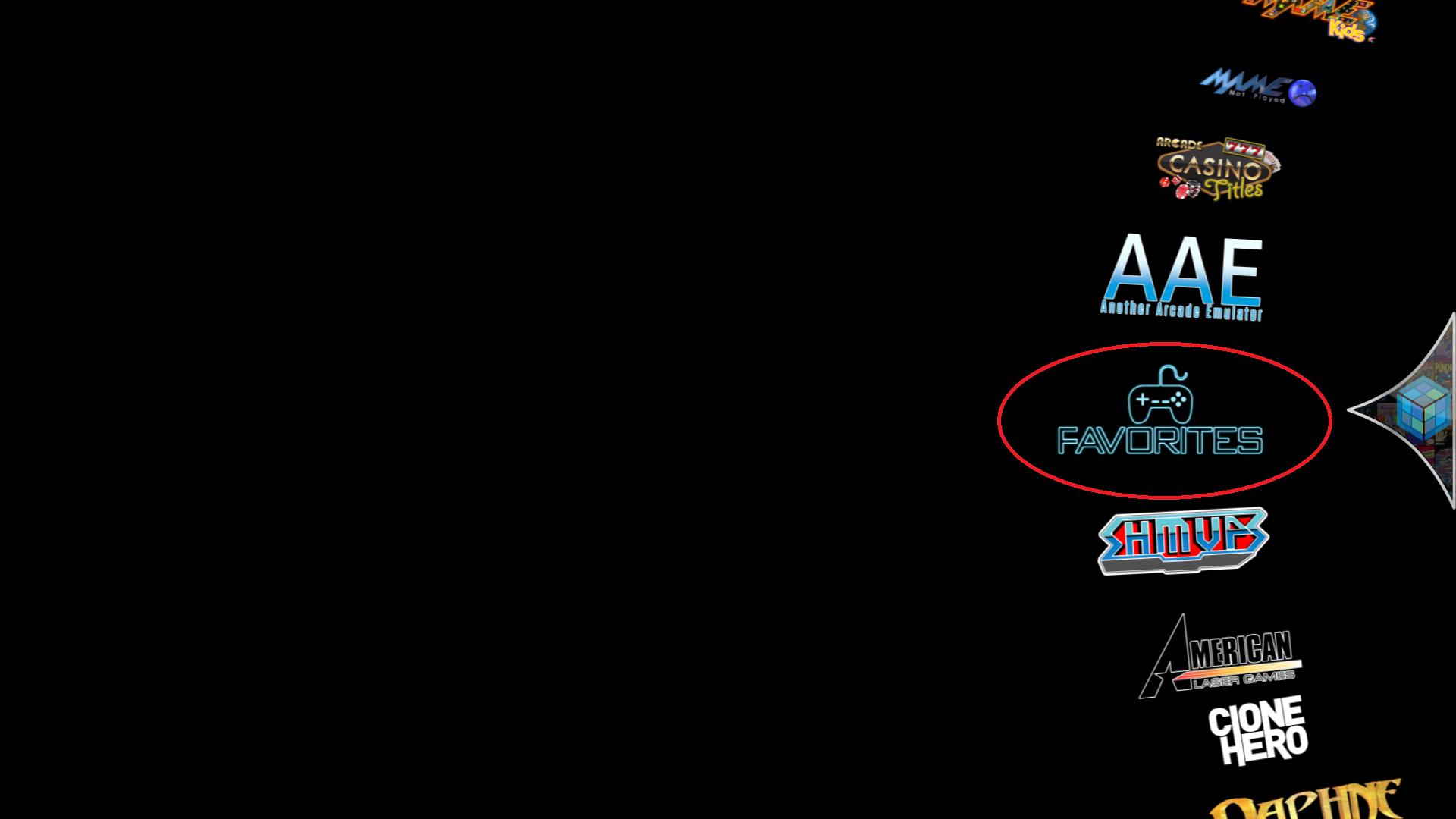

To mark a game as a Favorite: navigate to a game (don't load it), press P1's Credit/Coin button ($), then navigate to "Favorite" and press P1's START Button.

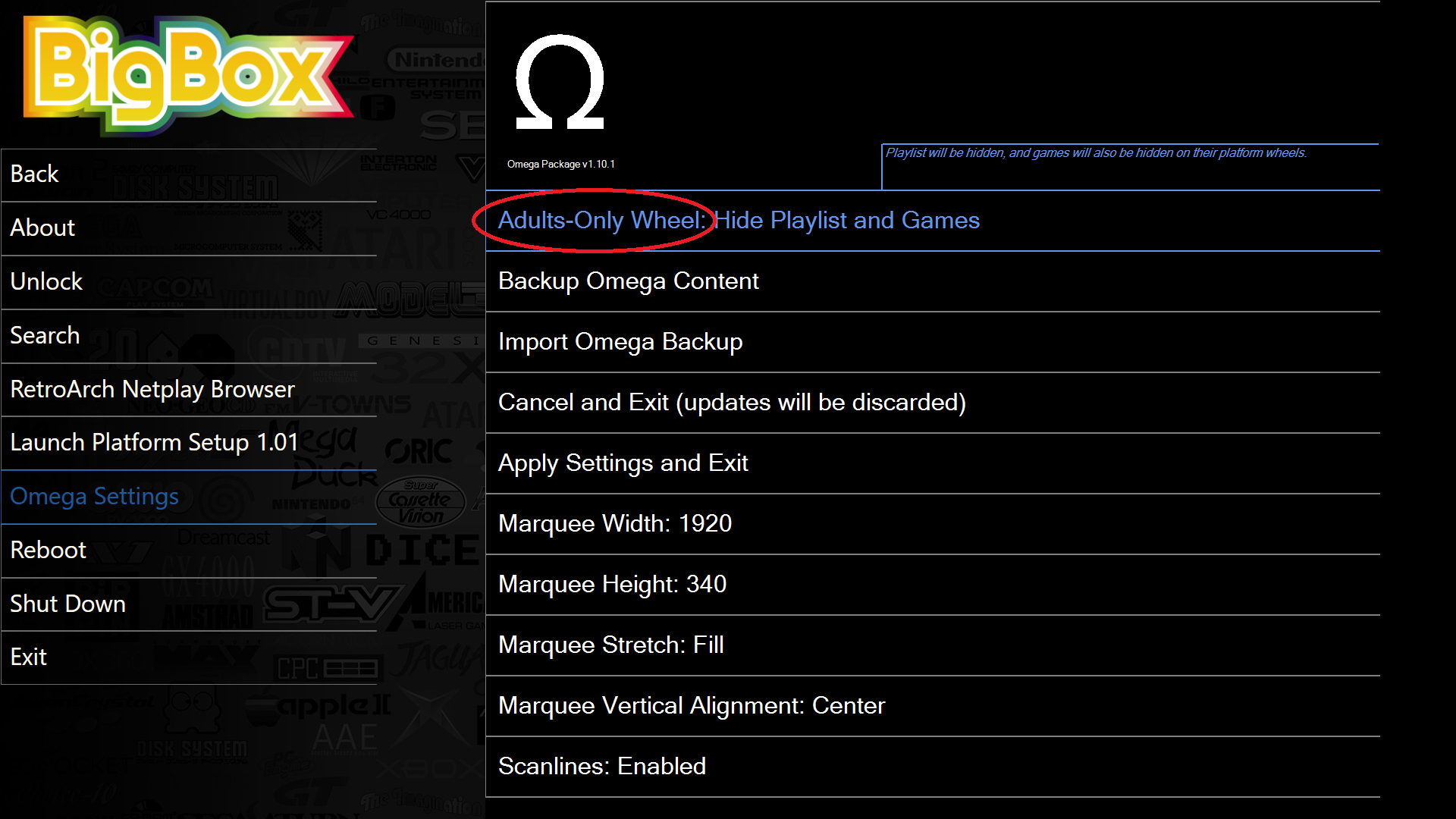
Go to the Big Box Unified screen, navigate to "Omega Settings," then toggle the "Adults-Only Wheel" setting.
In Omega Settings you can configure marquee resolution (typically 1920 wide), stretch, and vertical alignment. Navigate to "Apply Setting and Exit" when done. You must reboot for changes to take effect.

From the Big Box Unified screen, navigate to Unlock, enter 1 1 1 1, then go to Options > Sound to toggle sound settings. See also: Big Box sounds tutorial video.