D. Wireless Analog Controllers
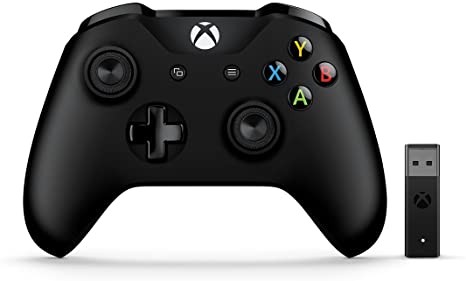
Important: To use a wireless analog controller in Omega the user MUST TURN IT ON AND HAVE IT SYNCED BEFORE THE GAME IS LOADED. If it is synced after the game is loaded it will not work.
You can map games to a wireless analog controller like an Xbox 1, Xbox 360 or similar controller. Some emulators like Nintendo 64, PlayStation 2, PSP, Nintendo GameCube, Dreamcast and many new PC games require an analog controller — the arcade machine controls will not work on these emulators.
Syncing/Pairing an Xbox Wireless Controller
- Unplug the Xbox dongle from the USB port, then plug it back in.
- Push the button on the Xbox Dongle until the light blinks, then let go.
- Take an Xbox controller and push the "ON" button (the lighted X button in the center). The controller will automatically start syncing. When it stops blinking, it is synced.
- If you have multiple controllers, press their ON buttons to sync them as well.
- If a controller does not sync, check the batteries.
Mapping a Wireless Analog Controller to MAME (Arcade Classic) Games
- Turn on your wireless analog controller.
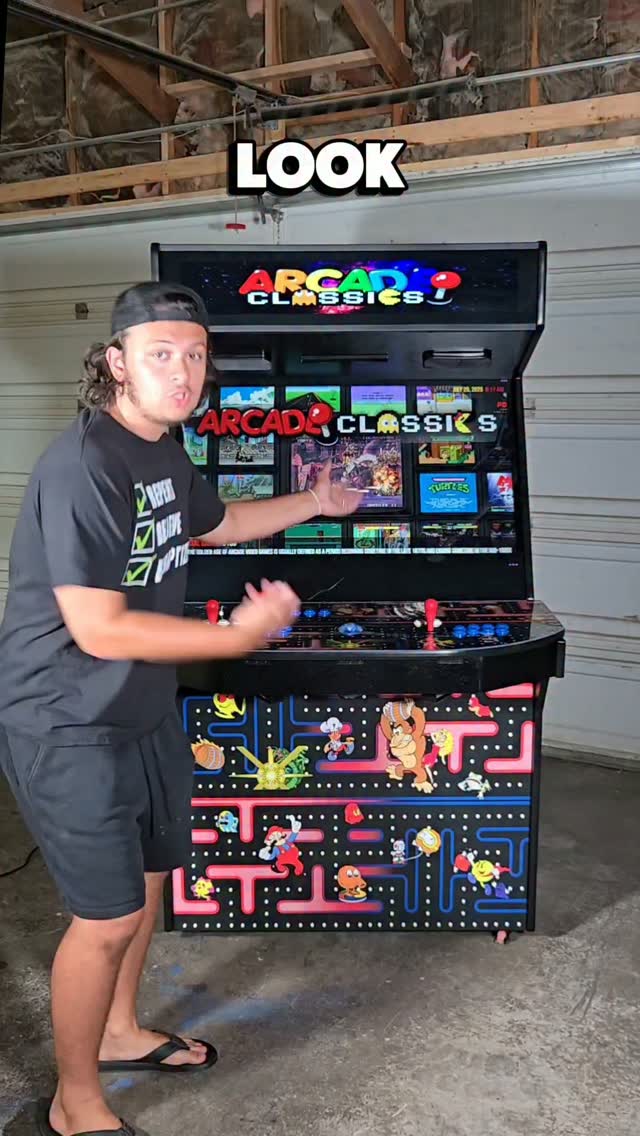
- Navigate to the ARCADE CLASSICS wheel and load a game (e.g., Green Beret).
- Credit and start the game, then pause it: HOLD P1's START Button and press P1's Joystick DOWN.
- HOLD P1's START Button and press P1's Joystick RIGHT to bring up the Player Menu.
- Navigate to "Input (this Machine)" and push P1's START Button.
- Take a photo of the current controls before making changes.
- Navigate to "P1 Up," press P1's START Button to clear it, then press UP on the DPAD of your analog controller.
- Do the same for P1 Down, P1 Left, P1 Right, P1 Button 1, P1 Button 2.
- Go to "Return to Previous Menu," then "Return to Machine."
- Unpause: HOLD P1's START Button and press P1's Joystick DOWN.
Mapping a Wireless Analog Controller in TeknoParrot
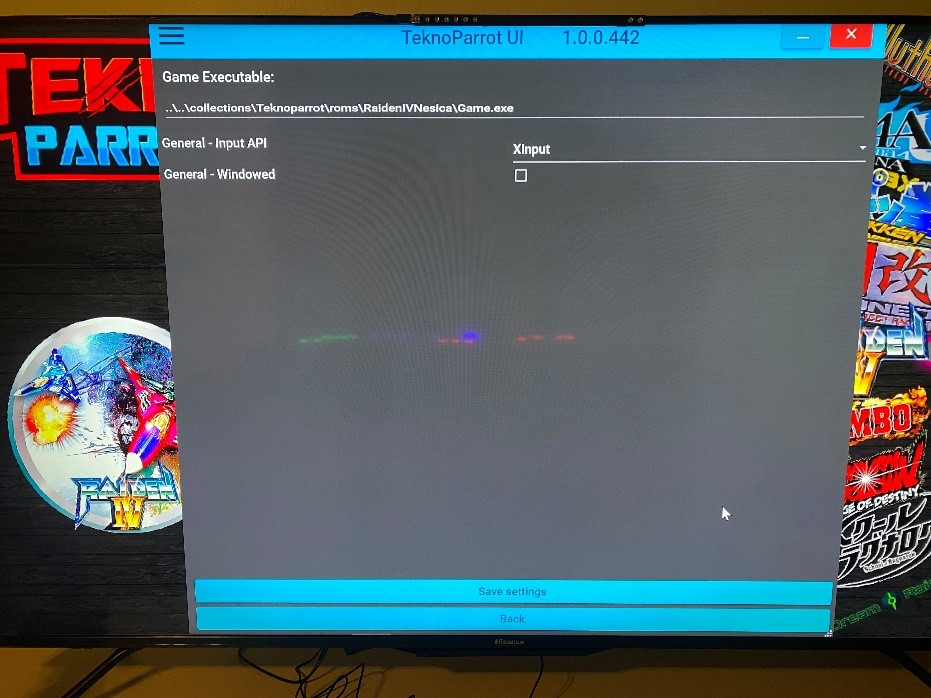
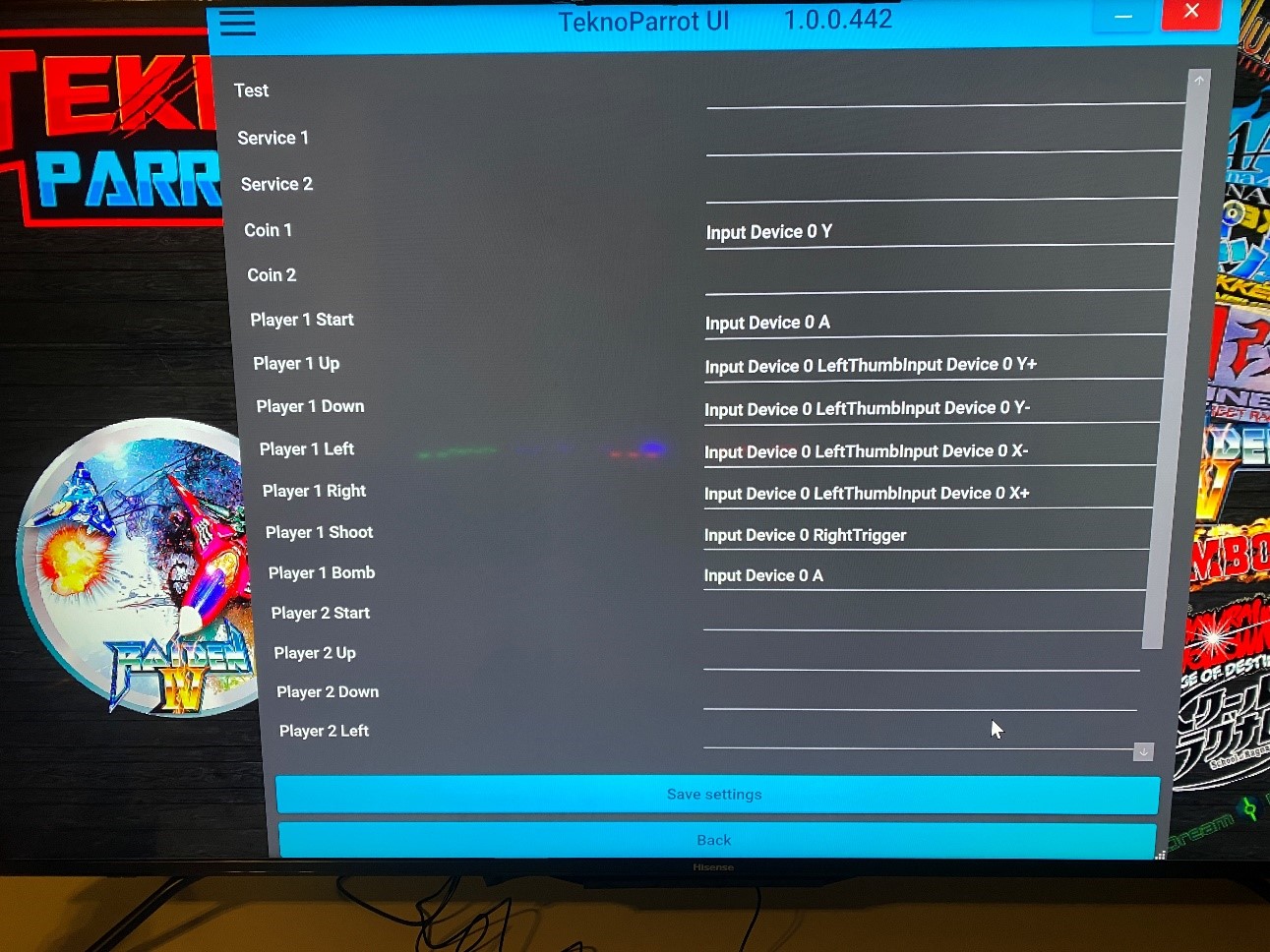
- Turn on your analog controller. Exit Big Box.
- Click on the TeknoParrot icon (red parrot) on the Task Bar.
- Click on your game (e.g., Raiden IV), then click "GAME SETTINGS."
- Make sure "General - Input API" is set to Xinput. If not, change it and click "Save Settings."
- Click "CONTROLLER SETUP."
- Click on the line next to "Coin 1" to clear it, then press your desired button.
- Click on "Start" and assign a button.
- Click on "Player 1 Up," press your left stick UP. Do the same for Down, Left, Right.
- Assign buttons for Player 1 Shoot and Player 1 Bomb.
- Click SAVE SETTINGS (do not click Back or you will lose your changes).
- Click "LAUNCH GAME" to test your setup.
- After testing, exit the game and close TeknoParrot UI.
- Return to Big Box via the icon on the Task Bar or Windows Desktop.