Omega Quick Start Guide
This Quick Start Guide is for fast learners, and people who do not like user's manuals and just want to dive in!
To receive your machine from the shipping company, unpack it, and move it into your residence, please see those sections later in this manual. This Quick Start Guide presumes you have your machine in a safe location, have plugged it in and the machine has electrical power.
NOTE: EHA supports several different button sequences depending on your machine:
- 2 player EHA machines and older 4-player EHA machines - [Shift] Key is Player 1's Start Button.
- KEYWIZ - If your EHA machine has a KEYWIZ your [Shift] key on your joystick panel is the "Shazaam" button.
- Newer (after 6/2022) EHA 4-player machines (IPAC4) - Your [Shift] key is Player 3's 7th button (i.e., Player 3 - 4th button from the left top).
1. Turning On Your Machine
- Uprights (MegaCade, Classic, Stealth) – The power button is located on top of the machine (upper left or right top of machine). It is a standard arcade push button (typically black). Push it, and it will turn on your machine.
- Tabletops – The power button is located on the back center portion of the cabinet.
- Pedestals – The power button is located on the back of the machine, near the center of the pedestal cabinet, opposite the HDMI port.
2. Loading a Game
- After you turn on your machine, an introduction video will automatically load. Allow the video to run for 30 seconds (this allows the system to fully load). After 30 seconds, push any button or push any position on any joystick to skip the introduction video. You will be at the Big Box main wheel.
- You can move down the Big Box wheel by pressing Player 1's Joystick down. Alternatively, you can move up the Big Box wheel by pressing the Player 1's Joystick up.
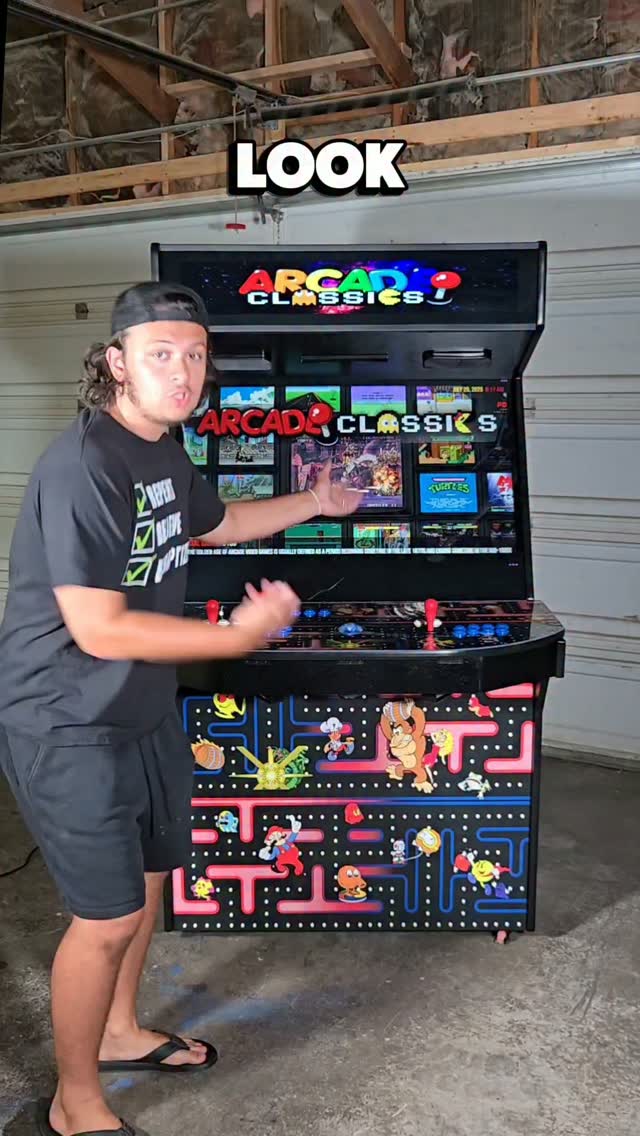
- Use Player 1's Joystick to go to ARCADE CLASSICS on the Big Box main wheel.
- Press Player 1's START Button to select ARCADE CLASSICS. You will then be in the Arcade Classics Wheel (menu).
- Load any game in ARCADE CLASSICS by pressing Player 1's START Button.
- Wait for the game to load. When the game is fully loaded, credit the game by pressing the Credit Button (also called the coin button, typically it looks like a dollar sign - $).
- Press 1 (2, 3, or 4) Player's START Button to start a 1 player or multiplayer game.
- To exit any game at any time Press and HOLD Player 1's START Button/OR your [SHIFT] Button and simultaneously push Player 2's START Button.
3. Turning Off the Machine
When you are ready to turn off your machine, go to the Big Box Main Wheel, then Hold Player 1's START button and simultaneously push Player 2's START button. This will take you to the "Big Box Unified" screen. Use Player 1's Joystick to point to Exit and then press Player 1's START Button. This will exit you out of Big Box and take you to the Windows Desktop. Now, use your trackball as a mouse, click the Windows Start Button, click the "Power" icon, then click "Shutdown." Alternatively, you can hold the power button to turn the machine off.
4. Quick Big Box Interface/Controls Summary
- Moving Forward in Menus and Games - Press Player 1's Joystick UP and DOWN to scroll through the wheels and/or game titles.
- Selecting a Wheel or Game - Press Player 1's START button to select a wheel or to select and play a game.
- Moving Backward in a Wheel/Menu - HOLD Player 1's START Button and then press Player 2's START button.
- Quitting a Game - HOLD Player 1's START Button and then press Player 2's START button.
- Global Search – Press Player 2's CREDIT Button to bring up the Global Search.
- Game Pause/Reset – While playing a game, HOLD Player 1 START Button and Press Player 1 Joystick Down.
5. Omega Tutorial Youtube Videos