Your cart

Clear Cart
Product Title
Add-On
Product Metafield Value
Option 1 / Option 2 / Option 3
Product Note
Subscription Plan Info
Product Discount (-$0)
COUPON1 (-$0)
$0
$0
-
+
Your cart is Empty. There must be something you'd like to add!

Enter discount code
Thank you! Your submission has been received!
Oops! Something went wrong while submitting the form.
Coupon1
Coupon2
Cart note
Subtotal
$0
COUPON2
-$0
Order Discount
-$0
Cart Total
$0

Front-End LaunchBox

Omega

9. Front-End LaunchBox

LaunchBox Logo

Loading LaunchBox

To load LaunchBox, exit Big Box and then wait 30 seconds. After that, double-click on the "LaunchBox" icon on the Windows Desktop.

Important: If you leave Big Box and then want to load LaunchBox directly thereafter, wait 30 seconds before loading LaunchBox. If you do not: 1) you may get an error saying a version of LaunchBox/Big Box is already running, and 2) you may corrupt some load files.
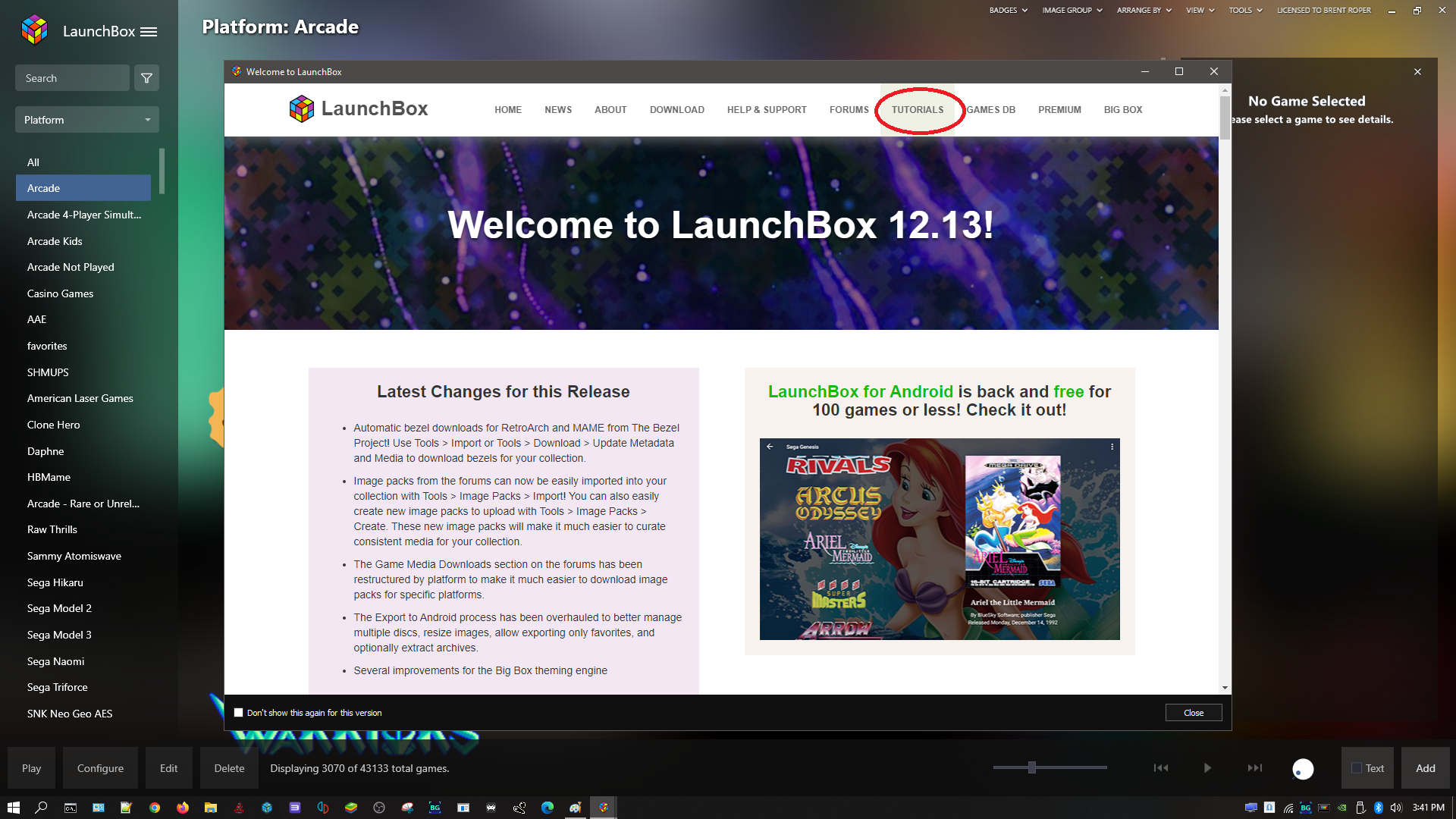
LaunchBox Tutorials

Welcome to LaunchBox Screen

When you load LaunchBox for the first few times a "Welcome to LaunchBox" screen is shown. A great way to learn is to watch the Tutorial videos.
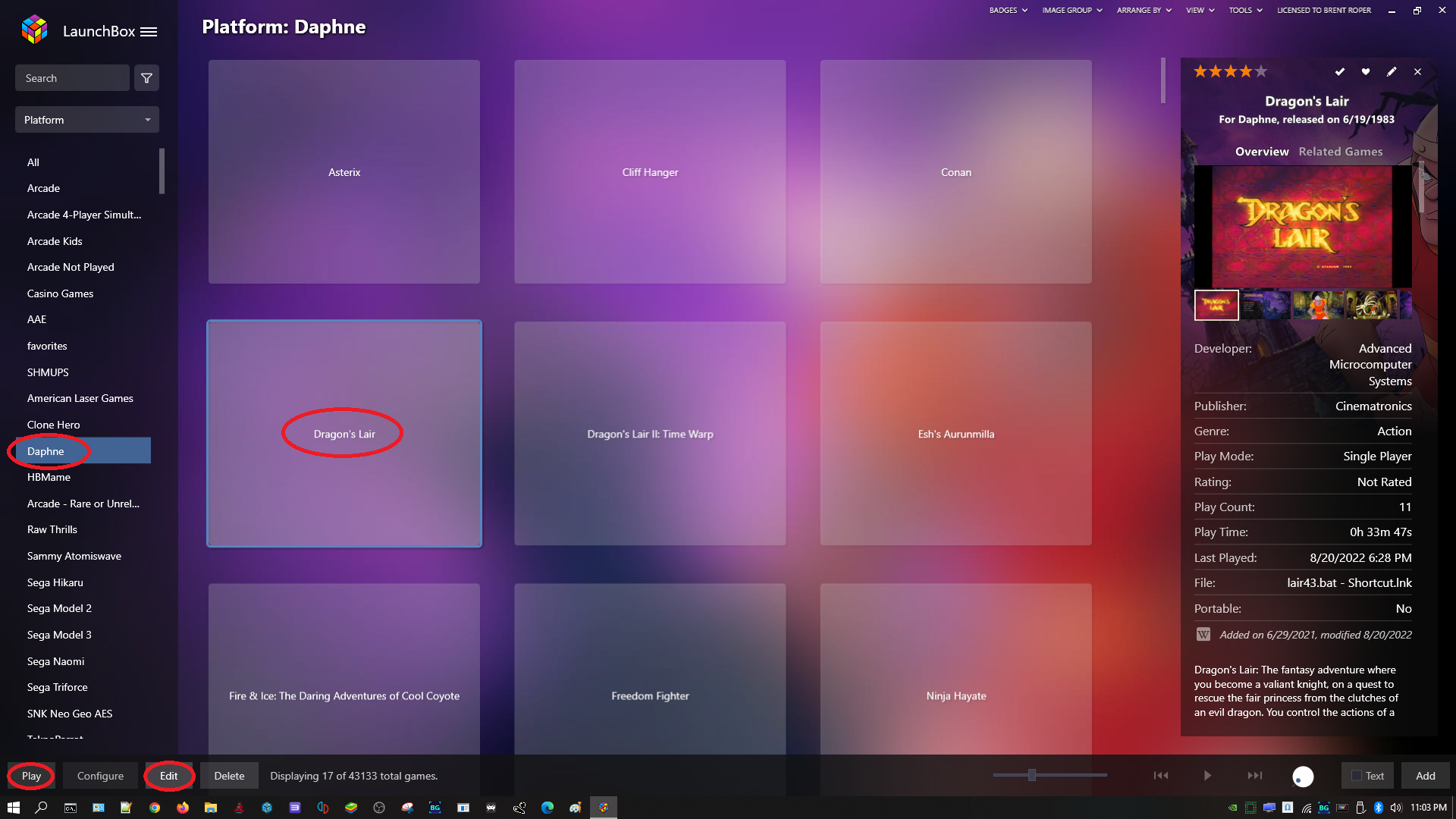
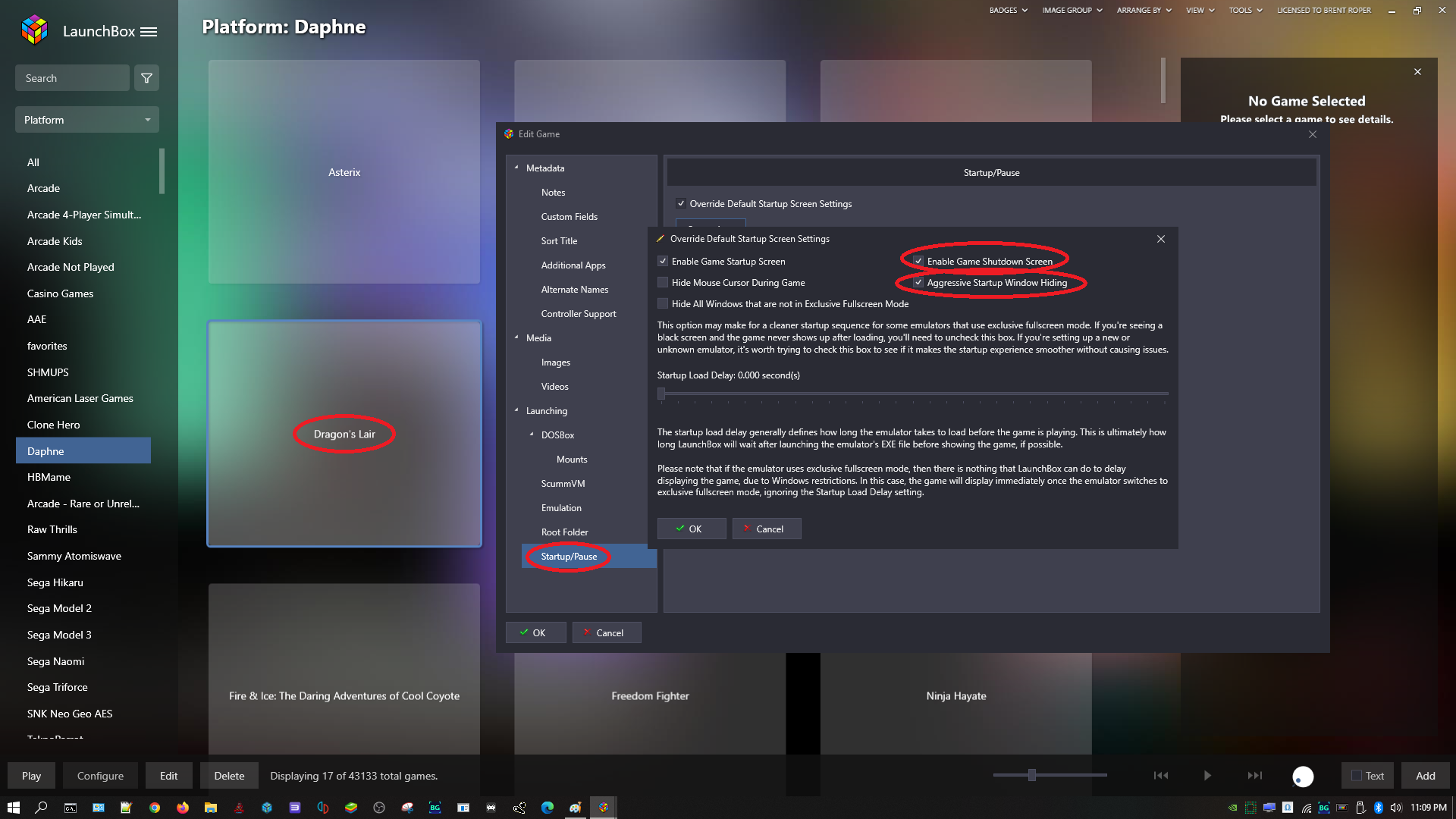
Getting Started - Correcting a Startup Issue in Dragon's Lair

LaunchBox Dragon's Lair SettingsLaunchBox Dragon's Lair Startup
  1. Click on the Daphne wheel, then click on Dragon's Lair.
  2. Click on "Edit."
  3. On the left side, click on "Startup/Pause."
  4. Check "Override Default Startup Screen Settings" then click "Customize..."
  5. Make sure "Enable Game Shutdown Screen" and "Aggressive Startup Window Hiding" are checked.
  6. Click OK, then OK again.
  7. Click Dragon's Lair and then Play to test.

Helpful Videos

Backing Up Omega Files in LaunchBox/Big Box

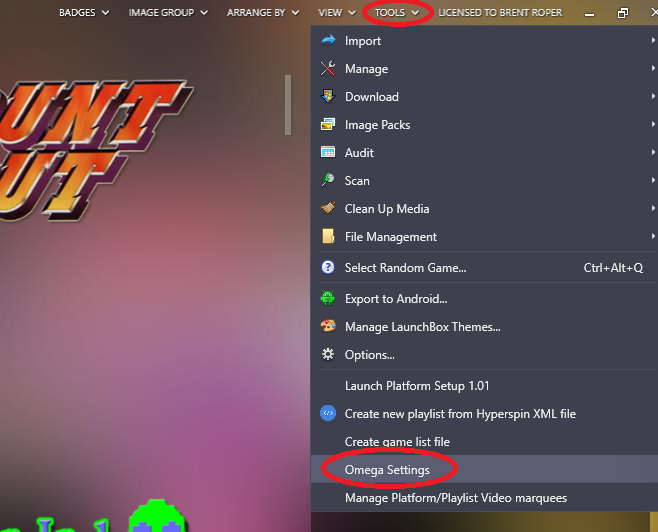
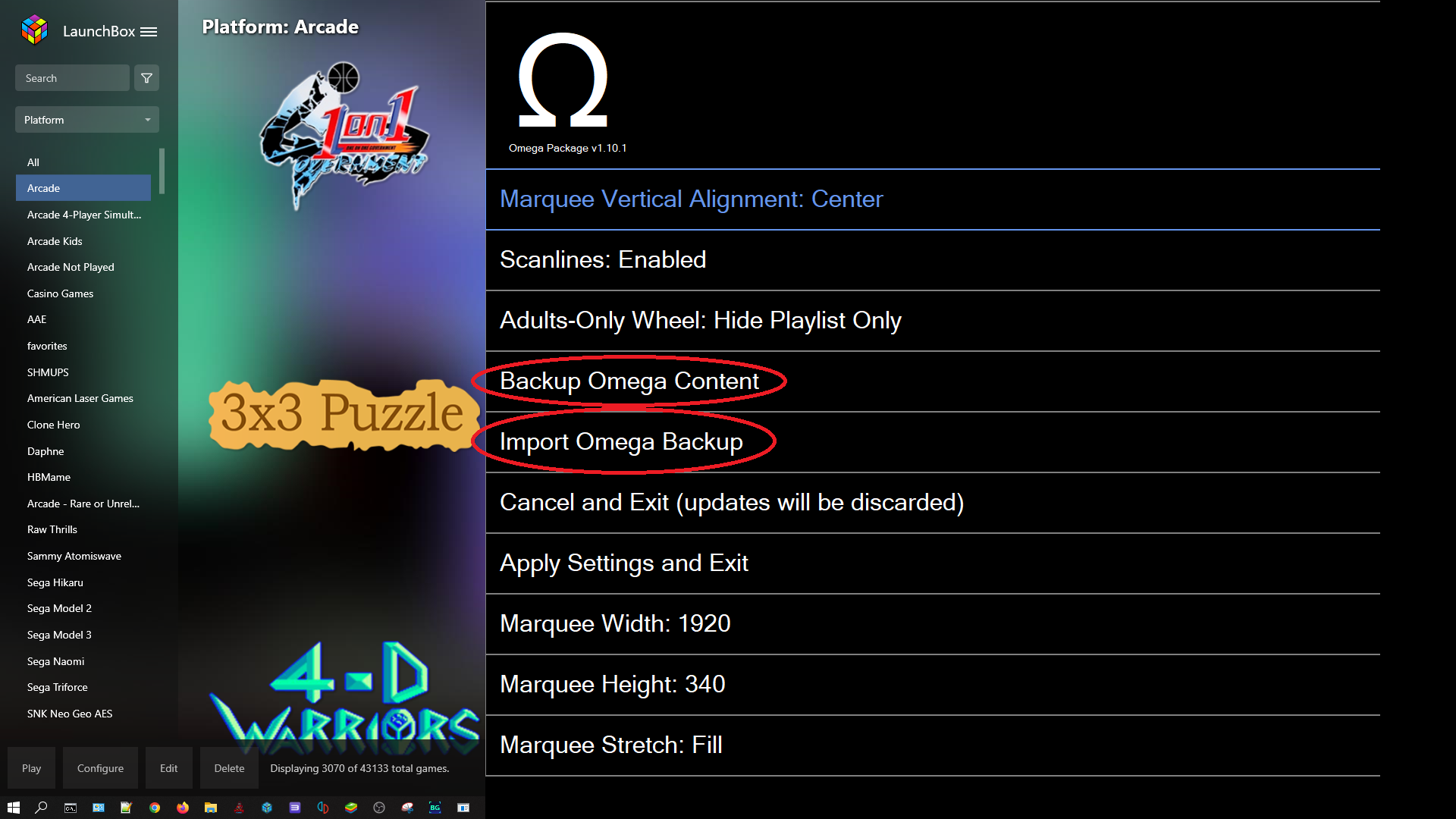
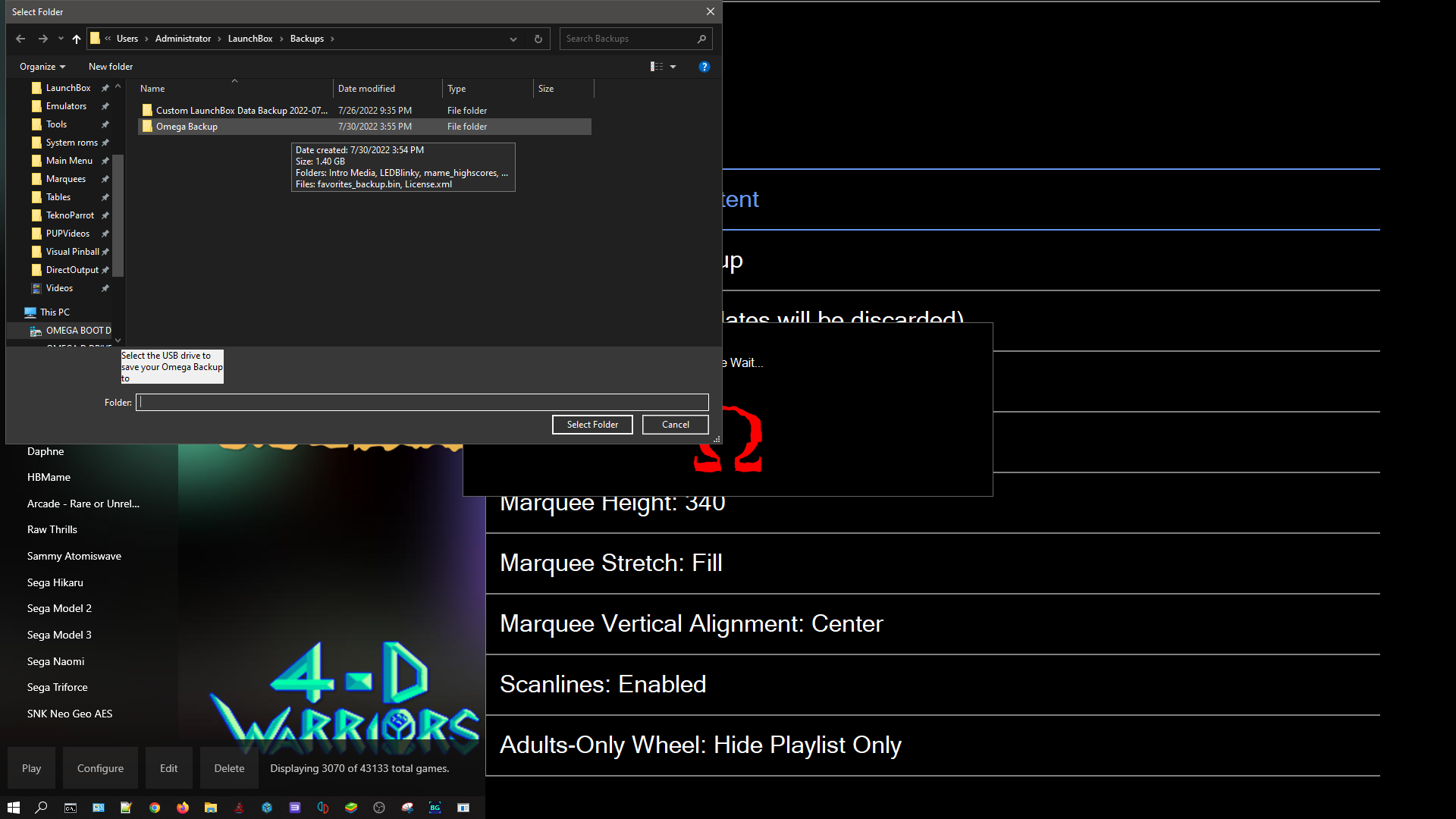
LaunchBox Omega SettingsLaunchBox Backup Omega ContentLaunchBox Omega Backup Folder

This backs up your LaunchBox/Big Box settings, Gun4IR settings, LED Blinky settings, favorites, MAME settings and high scores, and startup/marquee videos. To backup:
  1. In LaunchBox, click Tools > Omega Settings (or at the Big Box Unified screen click Omega Settings).
  2. Select "Backup Omega Content" and press P1's START Button.
  3. Choose where to store the backup files and click "Select Folder."
  4. To restore, at Omega Settings navigate to "Import Omega Backup," select the folder, and click "Select Folder."

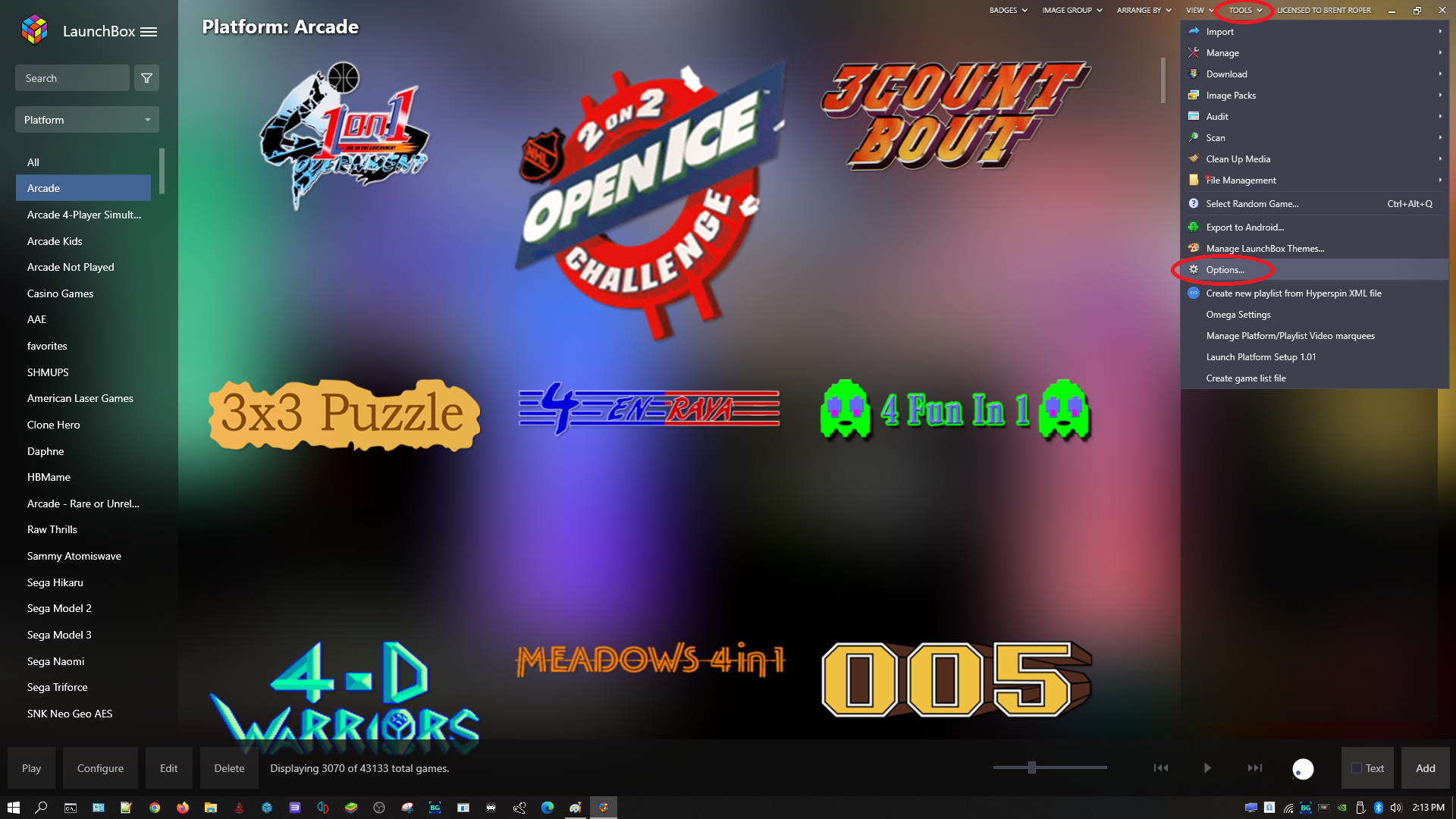
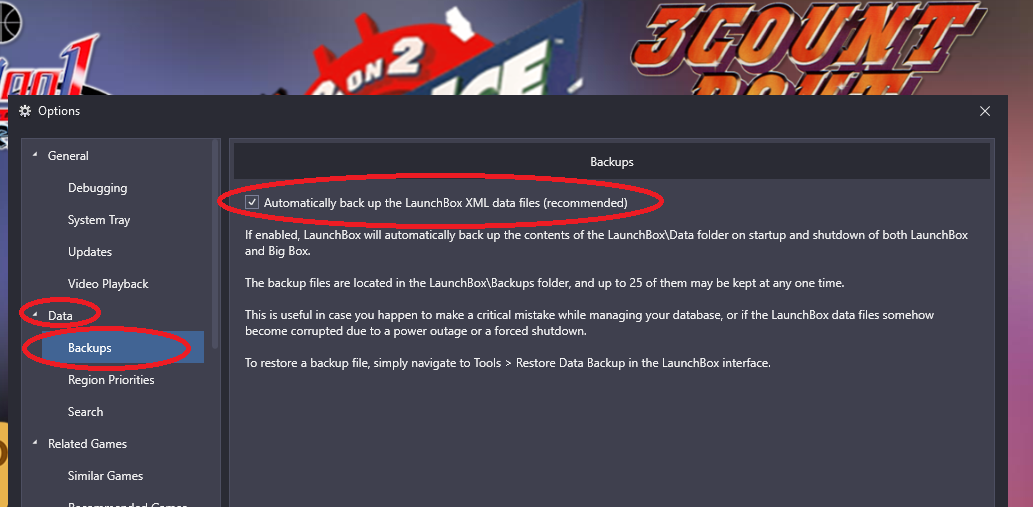
Backing Up and Restoring XML Data Files

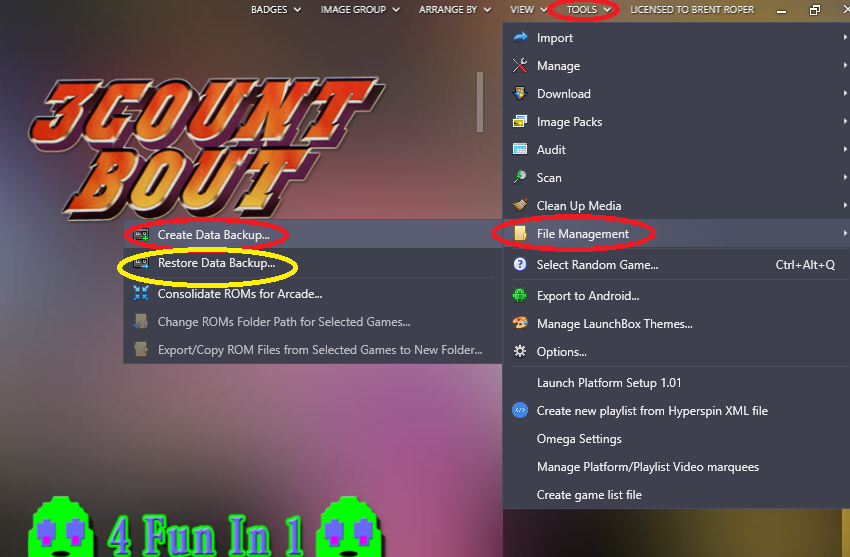
LaunchBox OptionsLaunchBox Automatic XML BackupLaunchBox Tools File ManagementLaunchBox XML File BackupLaunchBox Restore XML FilesLaunchBox Restore ConfirmationLaunchBox Restoring XML BackupsLaunchBox Restore via 7-ZipLaunchBox Extracted FilesLaunchBox Backup XML FilesLaunchBox Restore to Data Directory

See also: video on backup and restoring LaunchBox XML files.

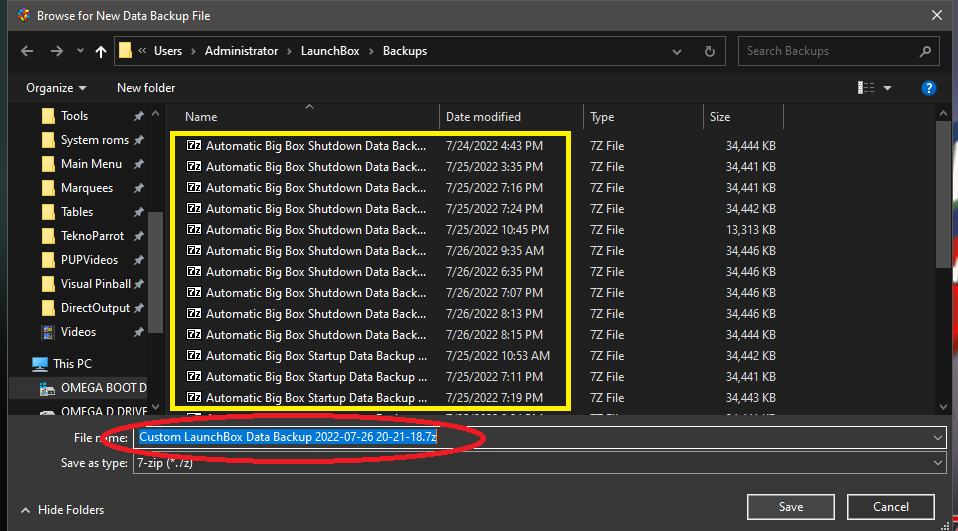
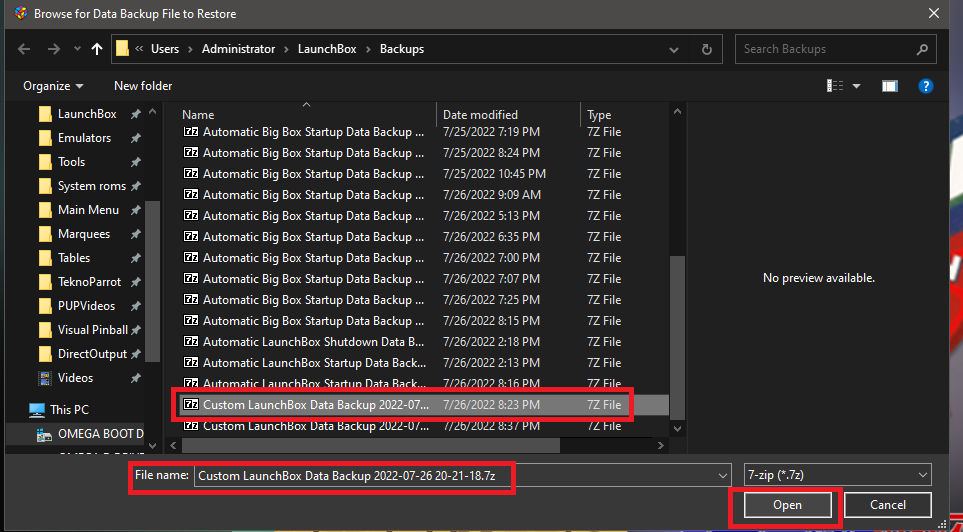
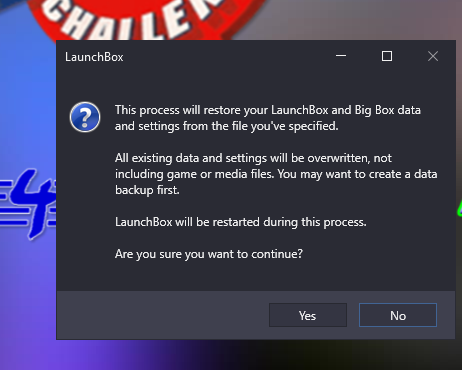
To backup XML files manually: In LaunchBox, click Tools > File Management > Create Data Backup. To restore: click Tools > File Management > Restore Data Backup, select the backup file, and click Open, then Yes.

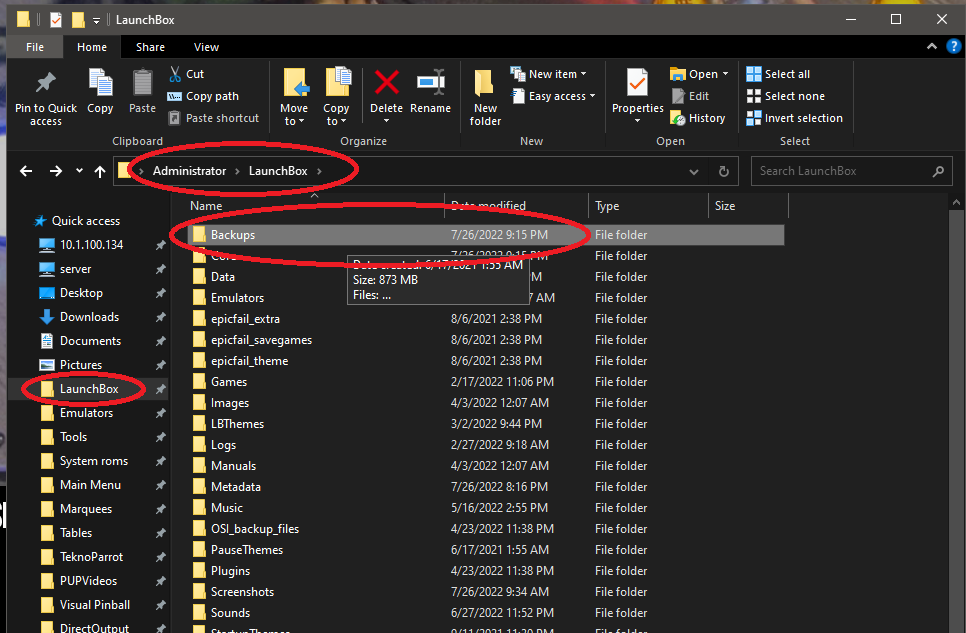
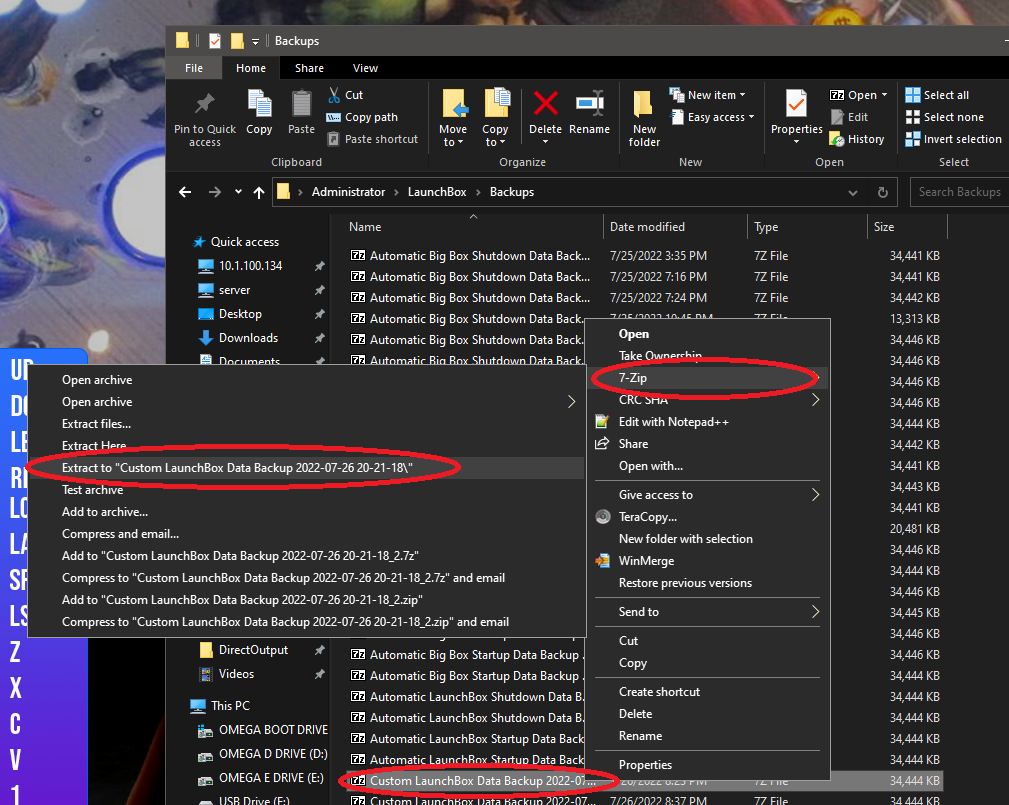
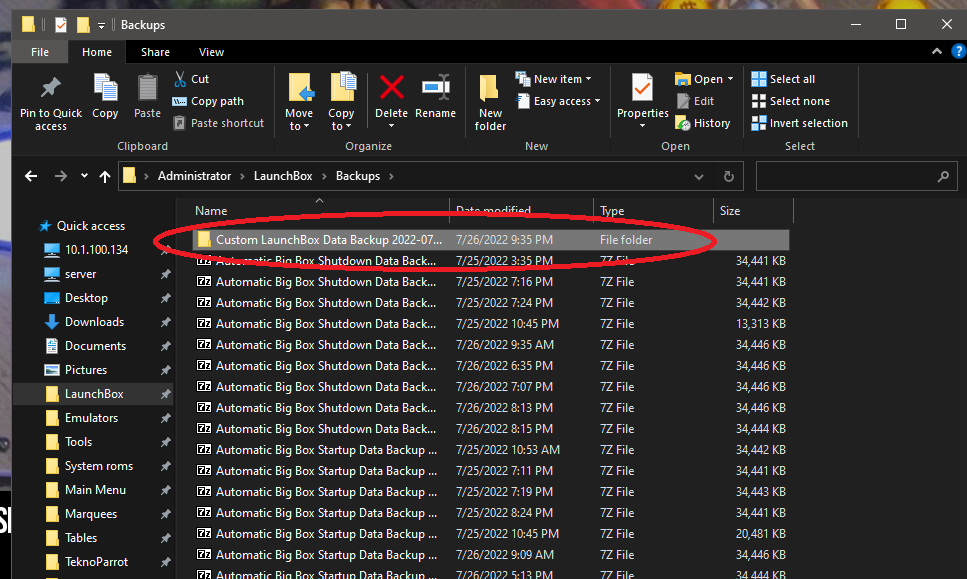
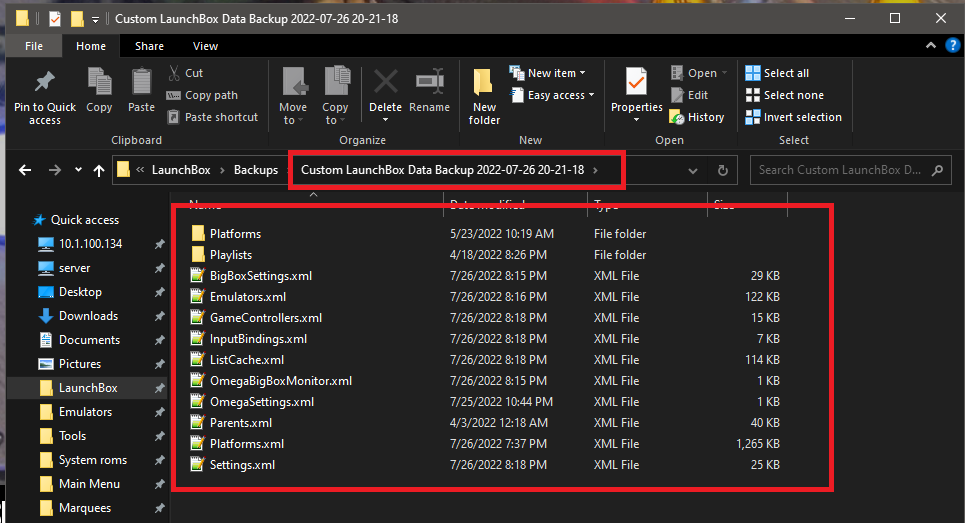
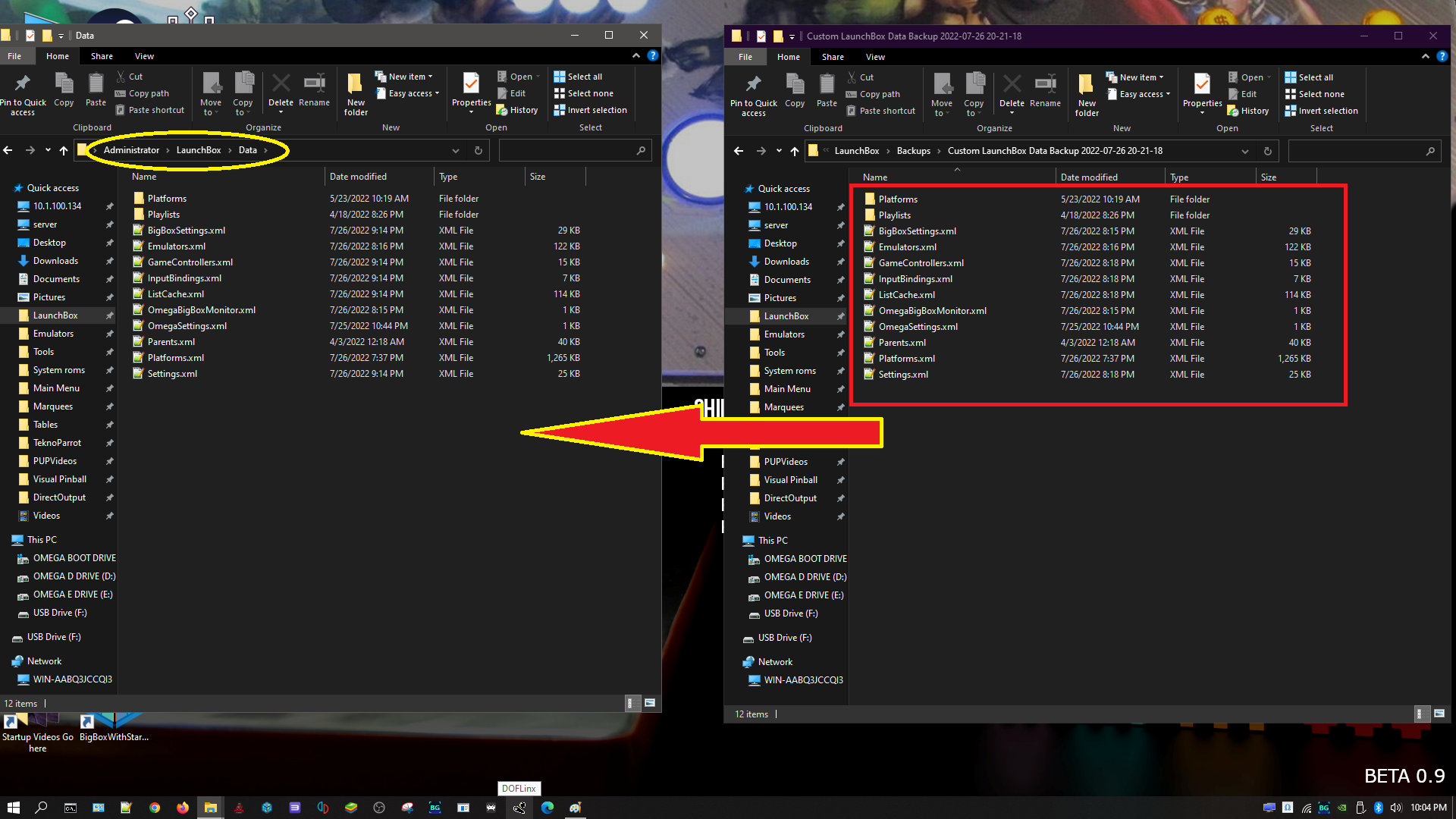
If LaunchBox won't load due to corrupt XML files: navigate to Administrator/LaunchBox/Backups in File Explorer, right-click the backup, select 7-Zip > Extract, then copy the extracted XML files into Administrator/LaunchBox/Data and click "Replace the files in the destination."


Webflow Logo
x
We'll transform this Webflow template into a custom, one-of-a-kind brand masterpiece for just $299.