Clear Cart
Product Title
Add-On
Product Metafield Value
Option 1 / Option 2 / Option 3
Product Note
Subscription Plan Info
Product Discount (-$0)
COUPON1 (-$0)
$0
$0
-
+
Your cart is Empty. There must be something you'd like to add!
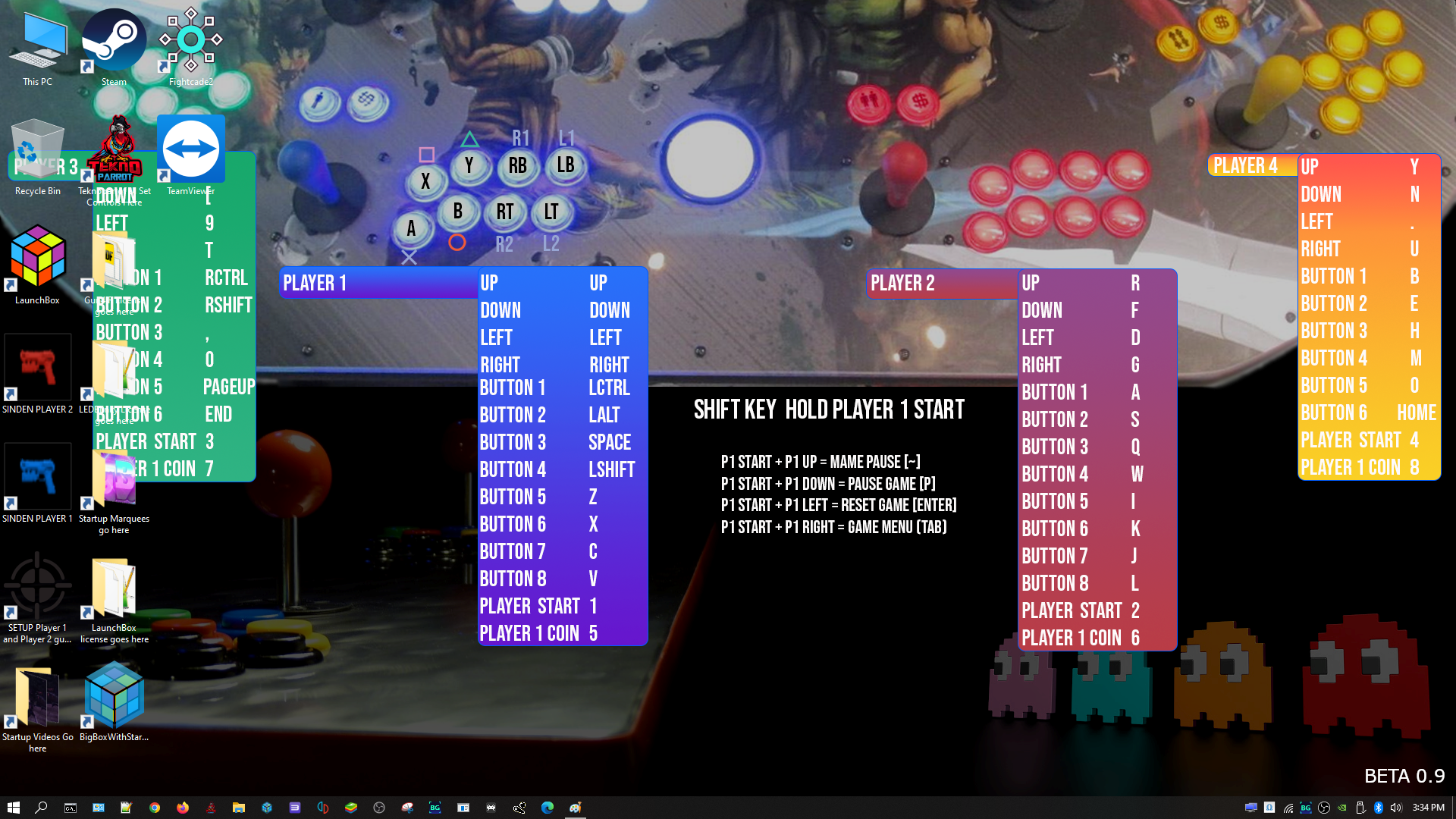
Extreme Home Arcades machines use Microsoft Windows 10 as a back-end system to control the many complicated computer functions needed to run emulators and games.
Under normal conditions: HOLD DOWN P1's START Button/[SHIFT] Button and Press P2's START Button multiple times until you get to the Big Box Unified screen. Then use Player 1's Joystick to navigate to "Exit" and press P1's START button. This will place you at the Windows Desktop.
When your machine is frozen it is extremely helpful to have a wireless or wired keyboard. There really is NO substitute for this.
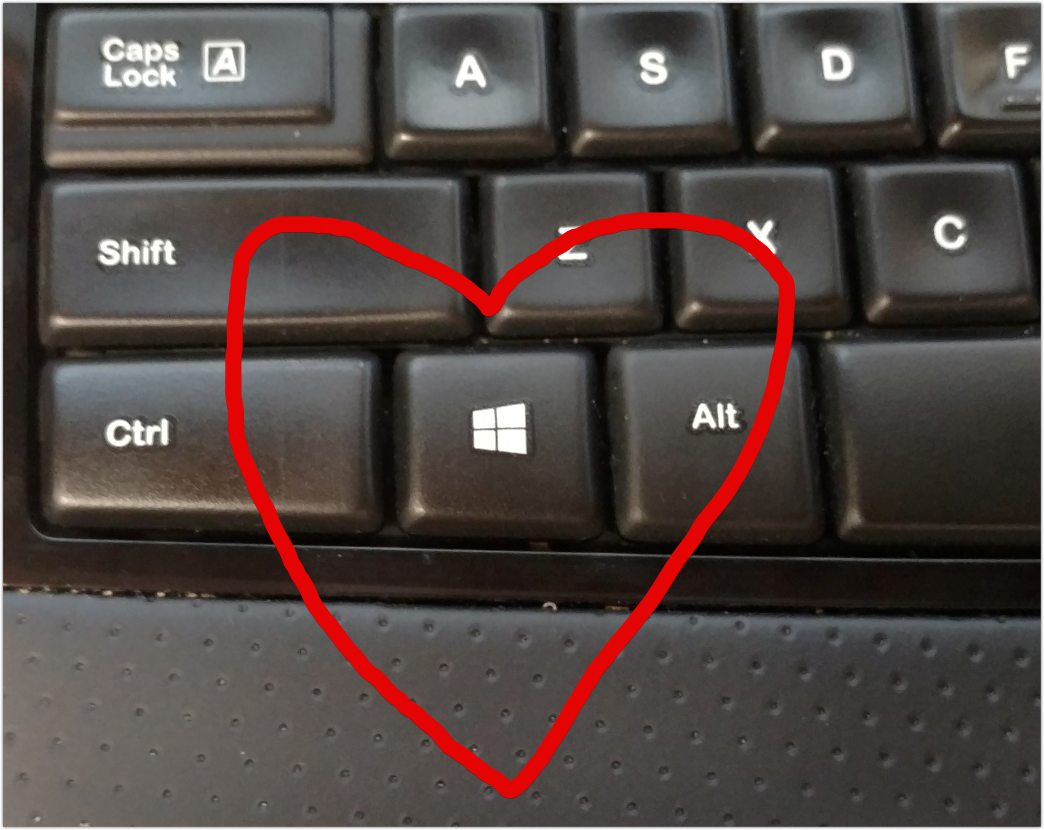
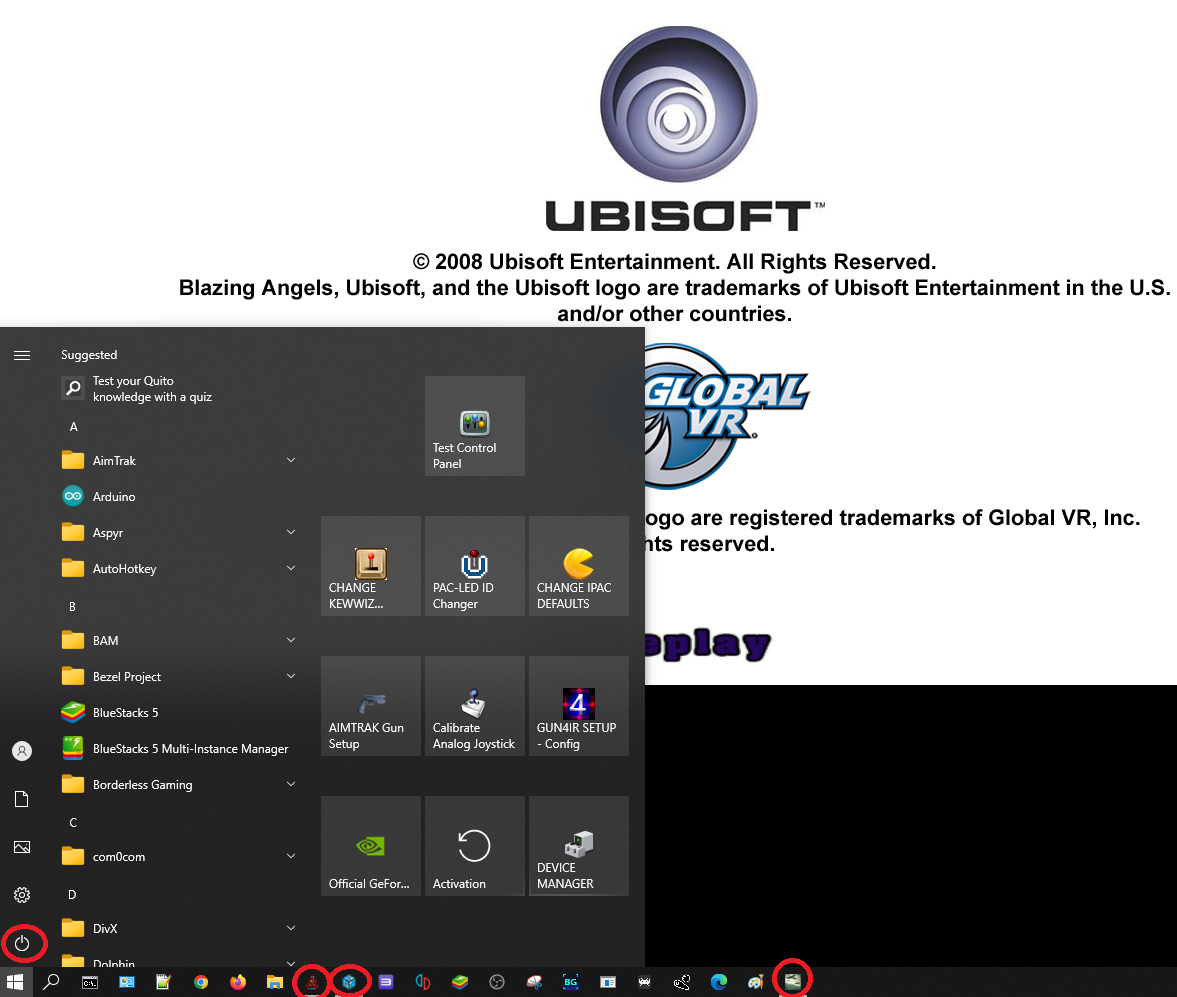
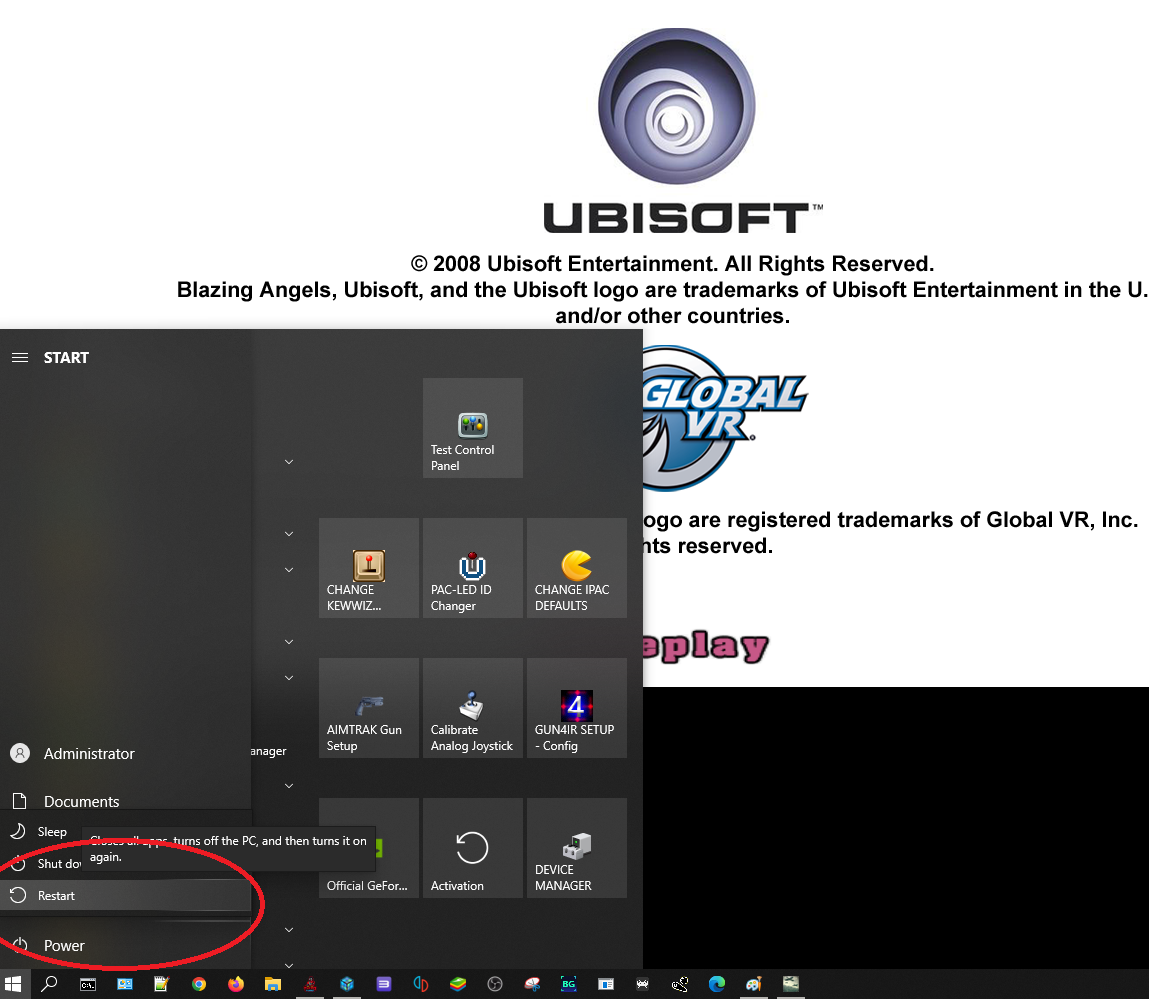
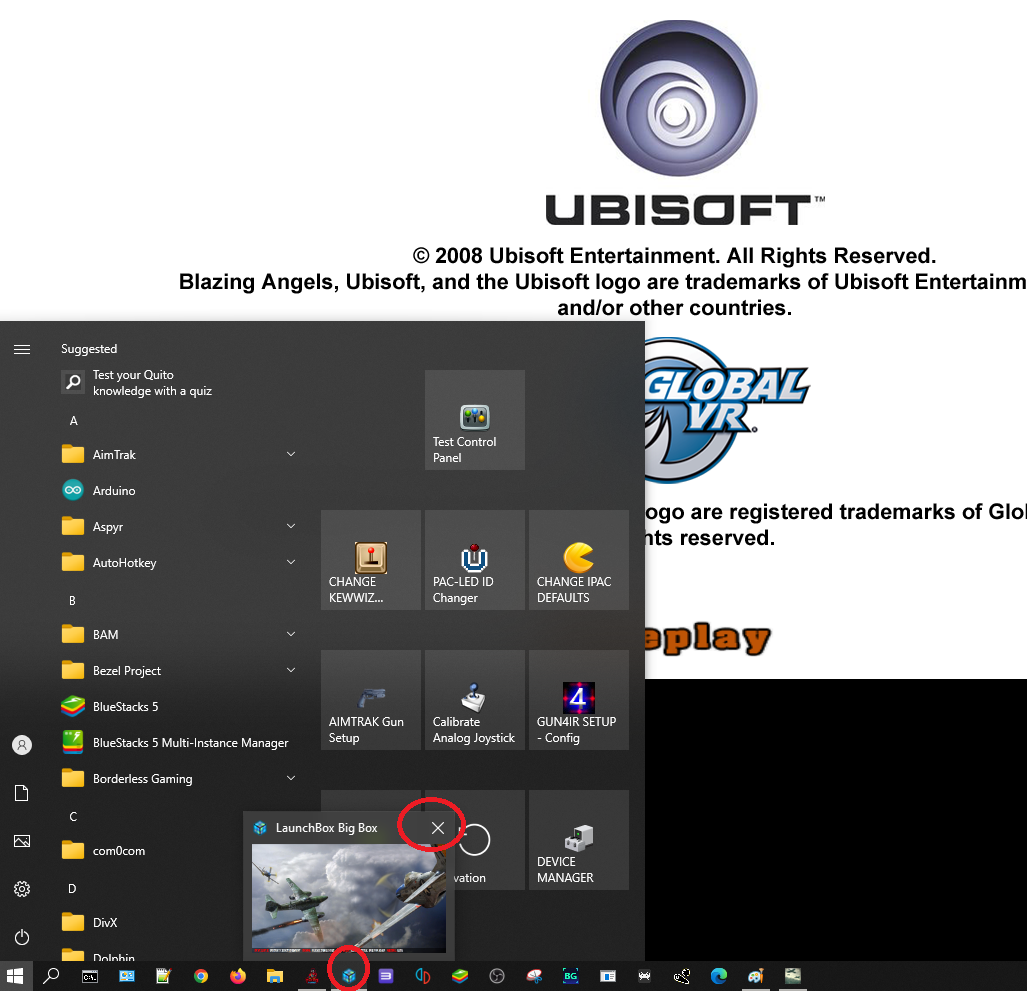
If a game is frozen, press the Windows Key on a keyboard. The Windows Start Menu will be displayed. Make sure the AUX switch is to the right so the trackball and AUX buttons work as a mouse. Right-click any open programs on the task bar to close them, or use the Power icon to Restart or Shutdown.
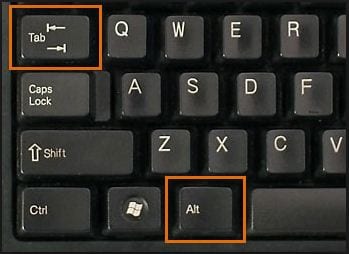
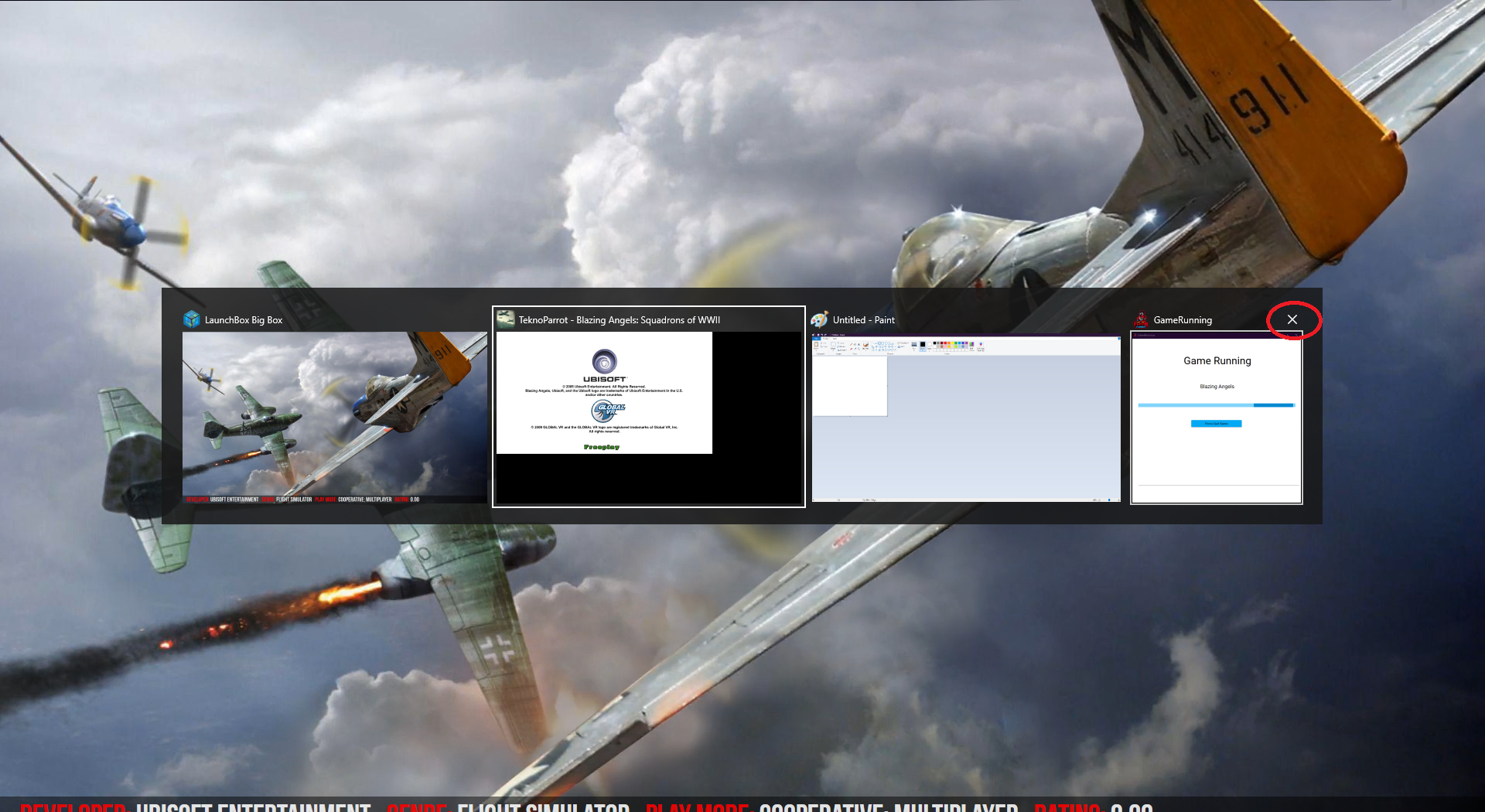
Press and hold [ALT] and simultaneously press [TAB] to switch between open windows. Continue pressing ALT-TAB to cycle through windows. To close one, hold ALT-TAB on the window you want, then click the X in the upper right.
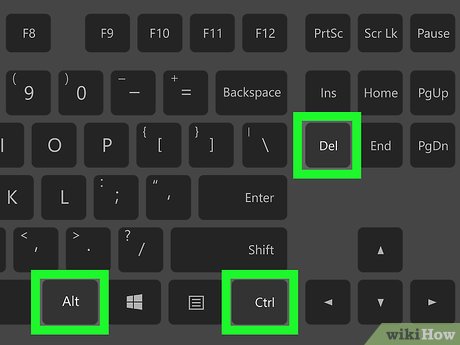
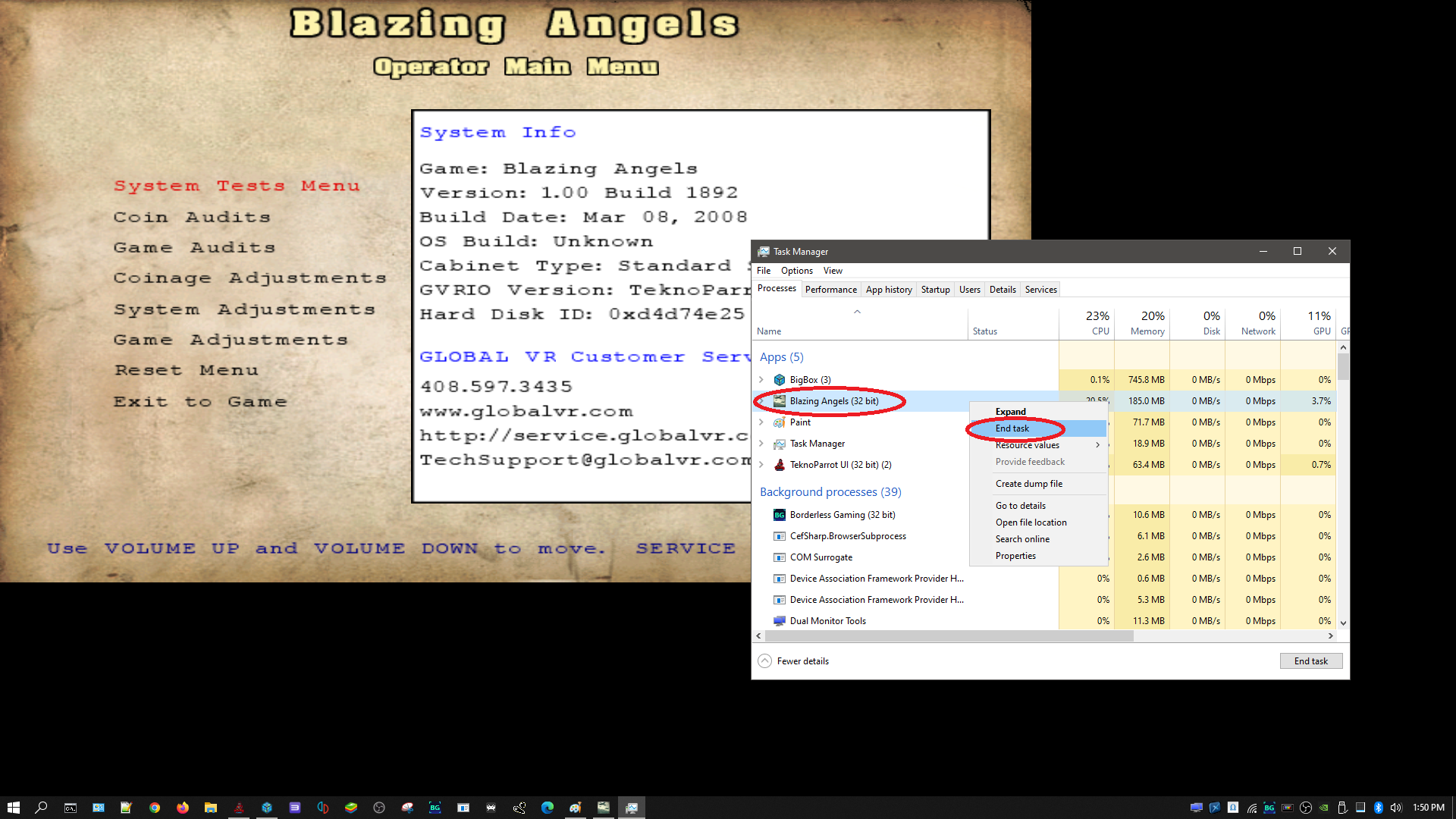
Press [CTRL]-[ALT]-[DEL] simultaneously and use Task Manager to close the frozen program.
If none of the above work, press and hold the power button that you used to turn the machine on. This will power down the system.